Jun 09, 2026
How to Authorize Wix Store on TeemDrop?
1. Ensure you are logged in to your Wix account, then sign in to your TeemDrop account, go to Store Management → Authorized Store → Add Store, select the Wix channel, and click ”Authorize“ button.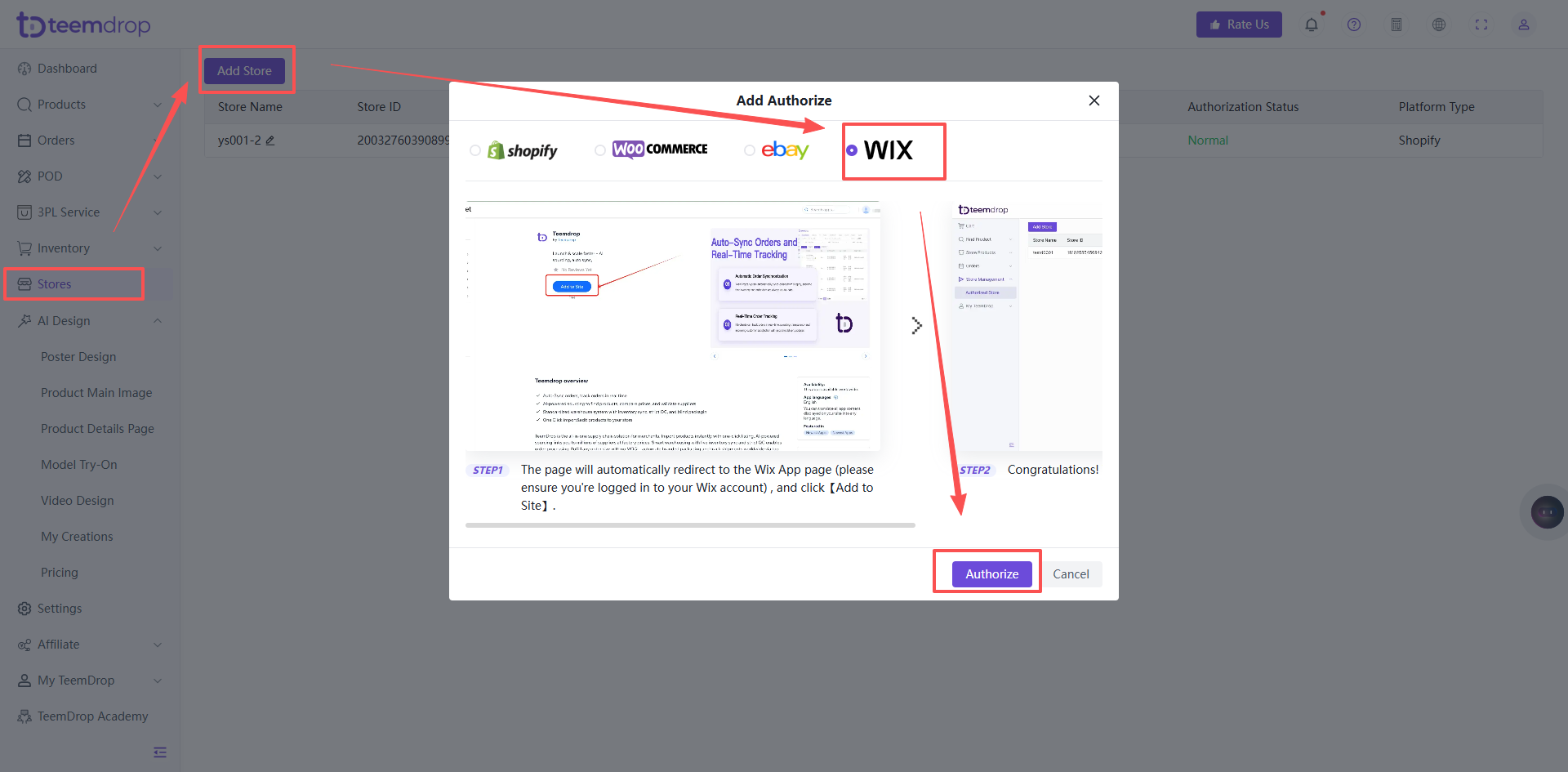
2. You will be redirected to the TeemDrop app page on the Wix App Market. Click "Add to Site".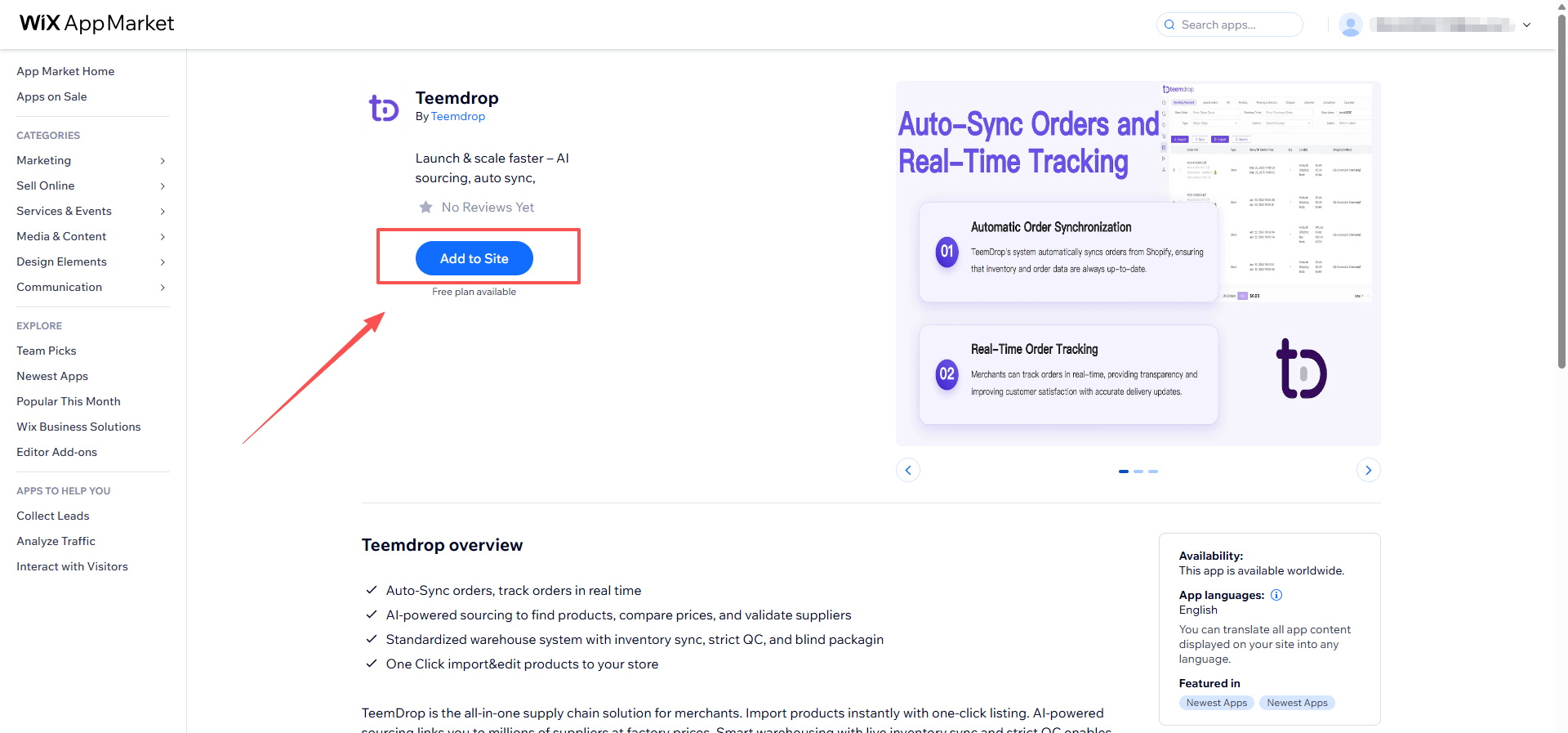
3. In the Wix permission confirmation pop-up, click "Agree & Add" to grant TeemDrop the required permissions.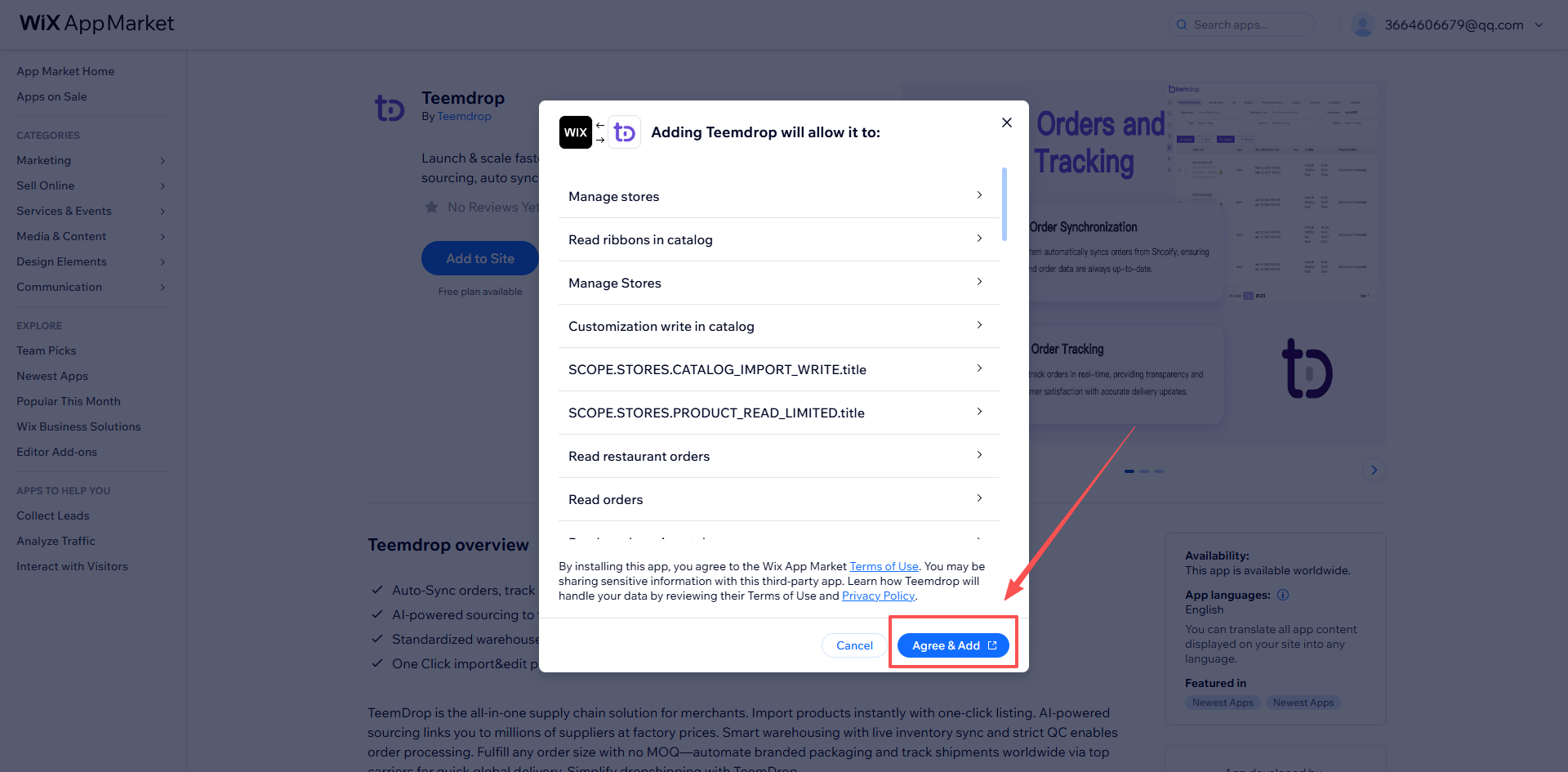
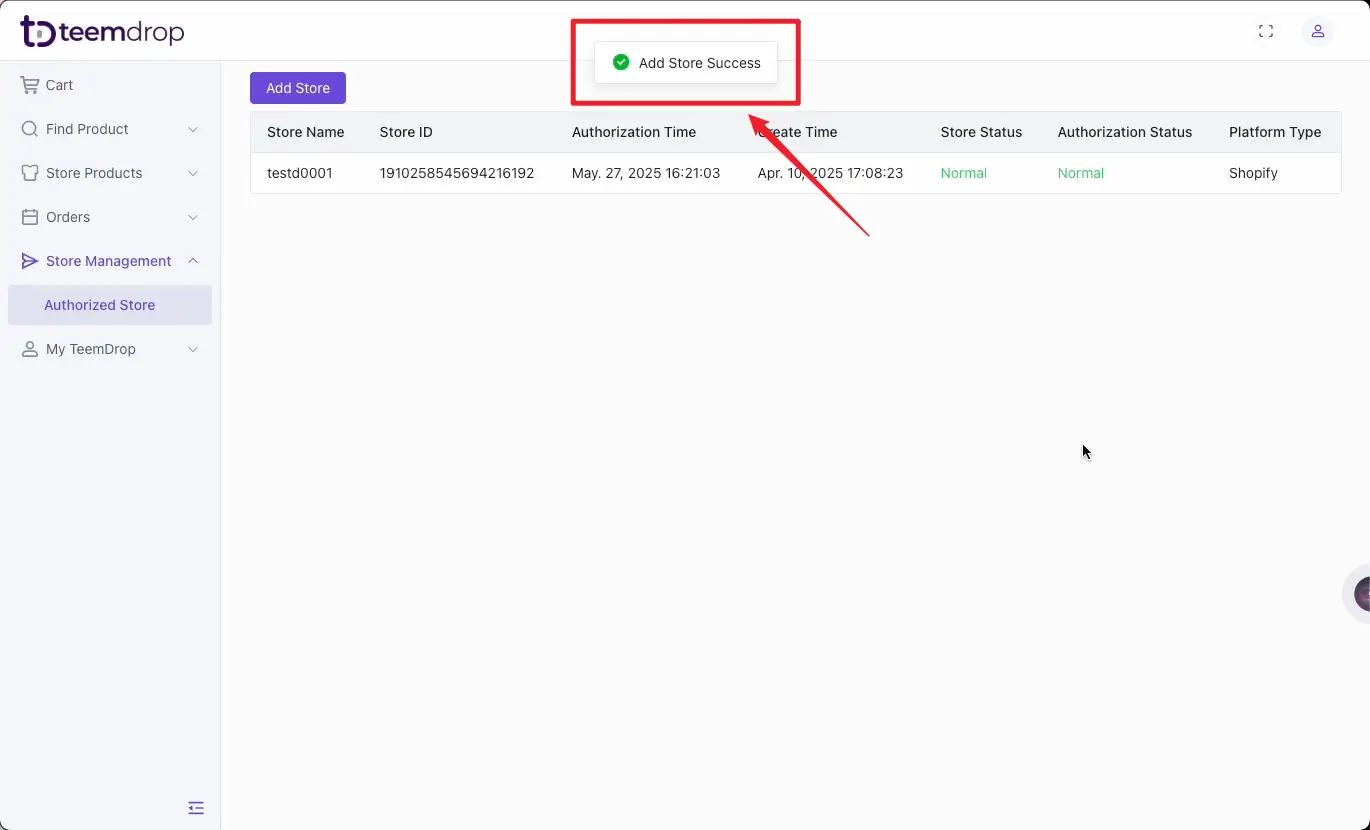
4. You will be automatically redirected back to the TeemDrop dashboard. The Wix store will appear in the Authorized Store list with a normal status, which means the authorization is successful.