Apr 09, 2026
How to Authorize WooCommerce with TeemDrop?
General Guide:
- Step 1: Get Site URL, Client Key and Client Secret at WooCommerce;
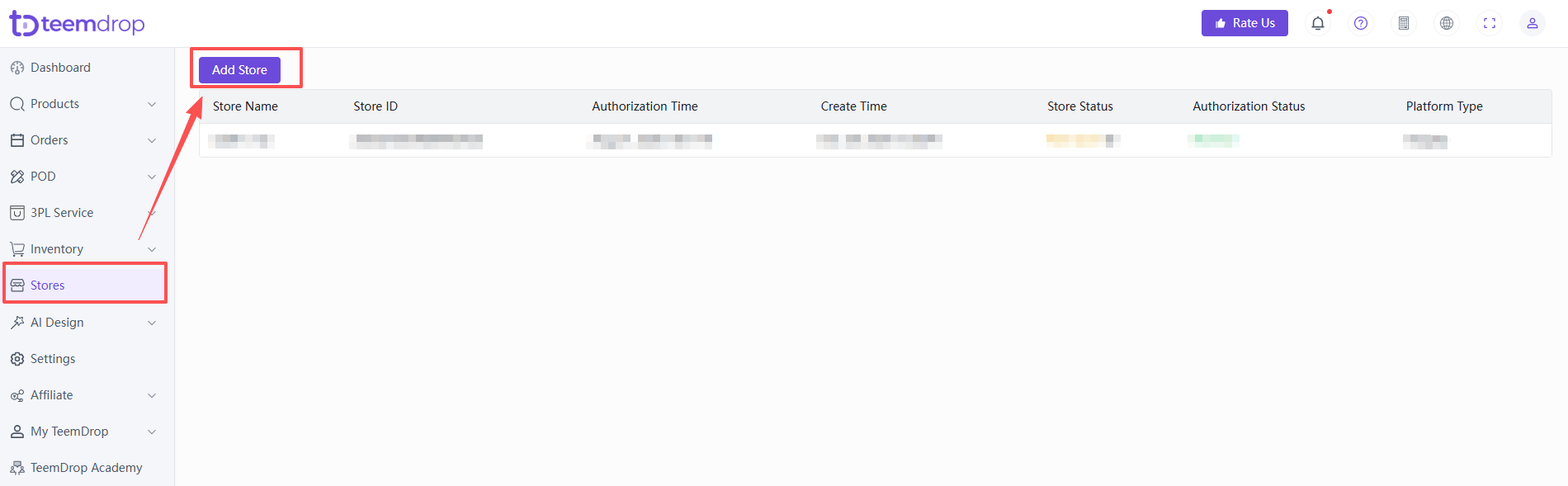
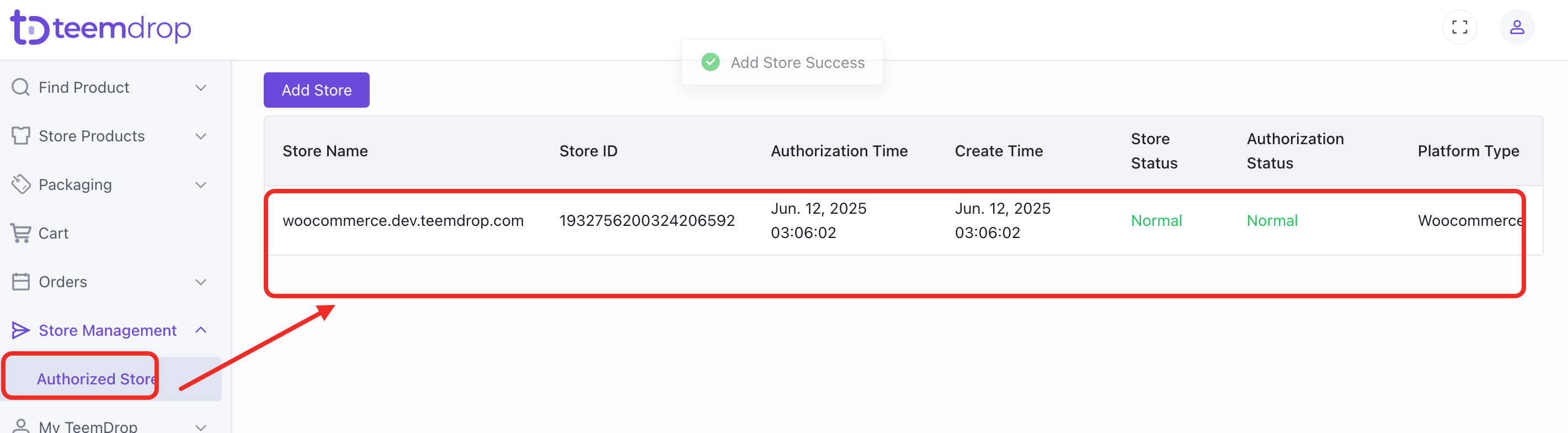
- Step 2: Go to TeemDrop > Stores, then click [Add Store] ;
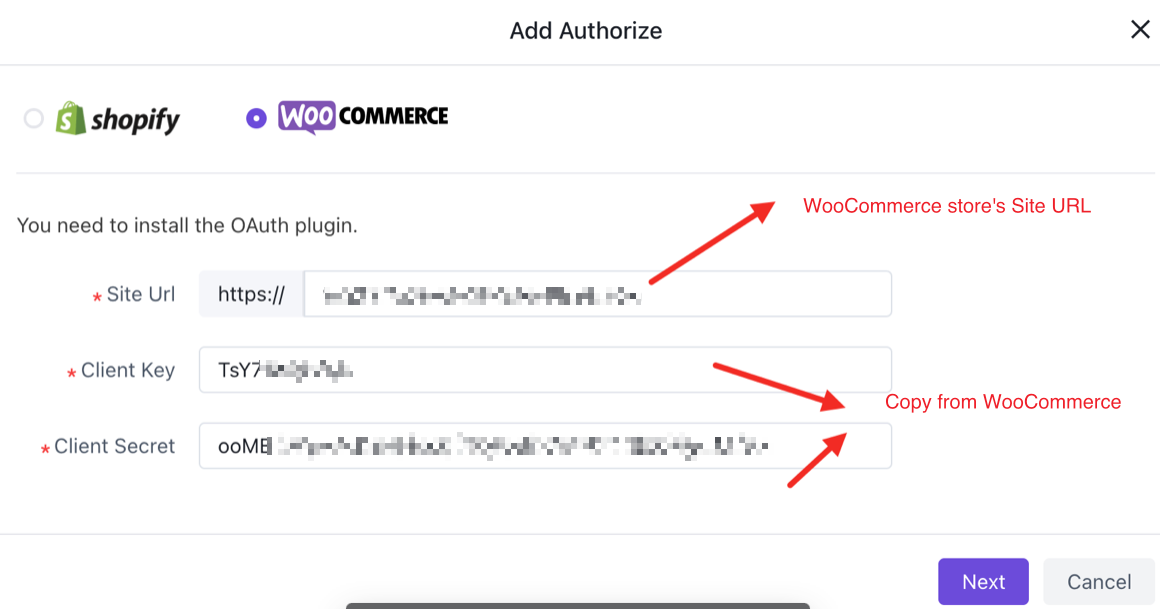
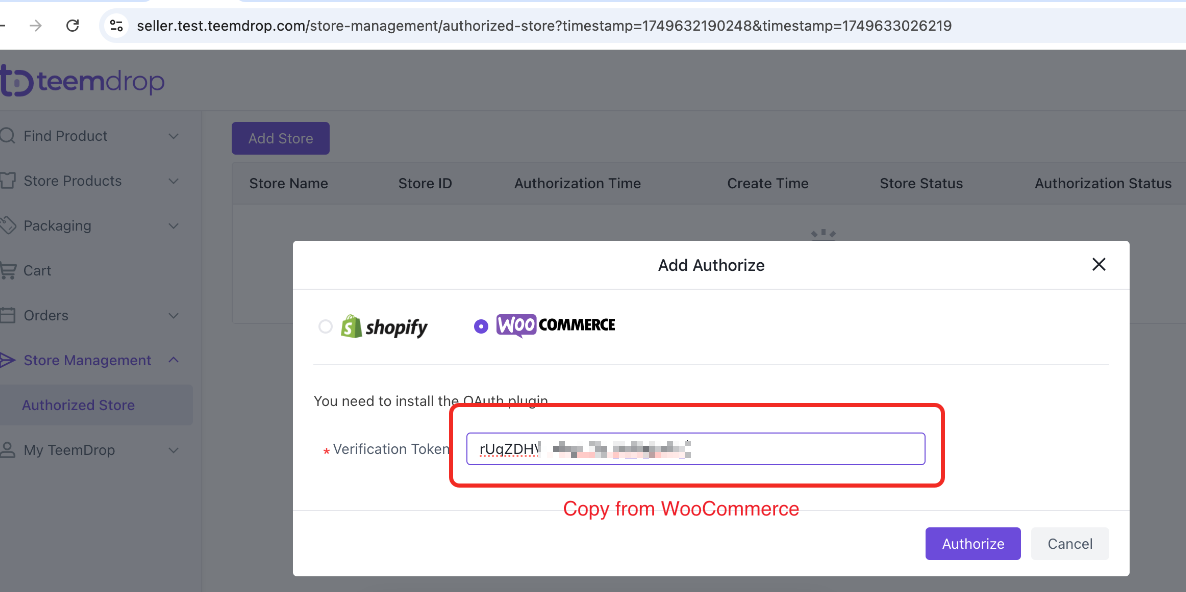
- Step 3: File in Site URL, Client Key and Client Secret at TeemDrop, then click [Next] get Verification Code ;
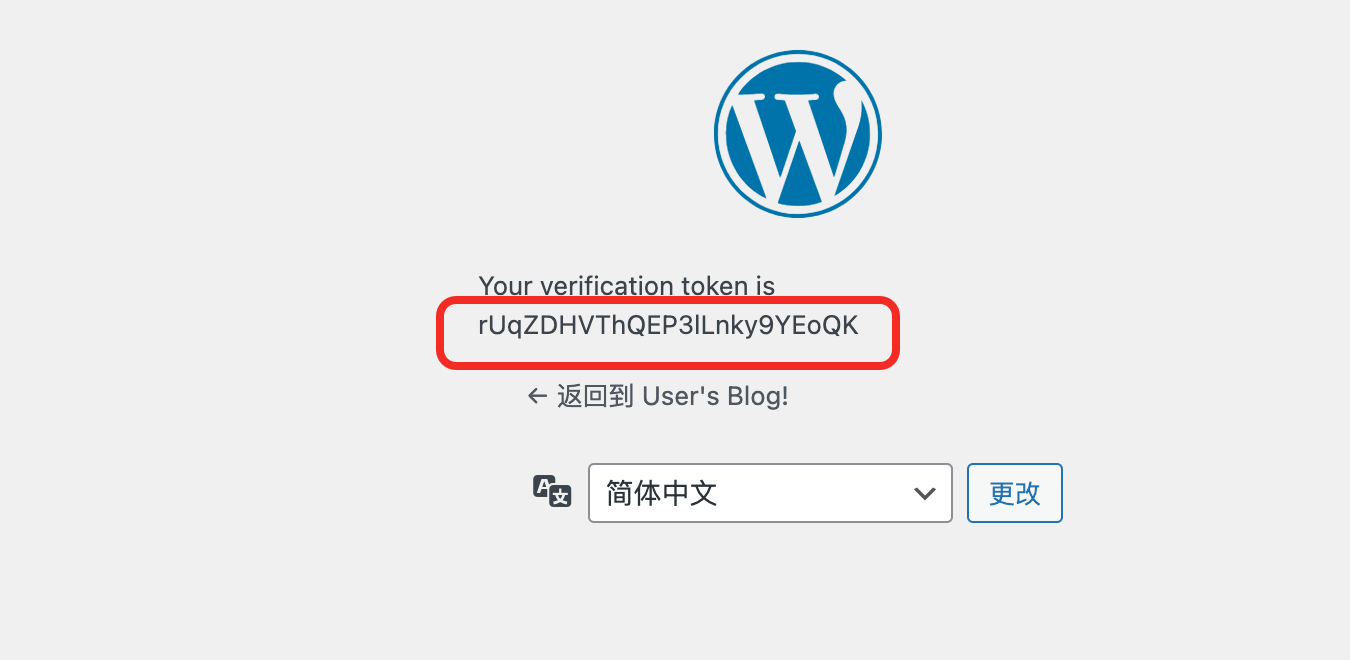
- Step 4: Paste the Verification Code to TeemDrop, and complete the authorization.
⭐️ How to get my WooCommerce store's Site URL?
To find your WooCommerce store's Site URL, log into your WordPress dashboard, go to "WooCommerce" > "Settings" > "General", and look for the "Site Address (URL)" field. The URL displayed there is your store's website address.
⭐️ How to get my WooCommerce stores Client Key and Client Secret?
1. Login WooCommerce page and click on [Plugins]
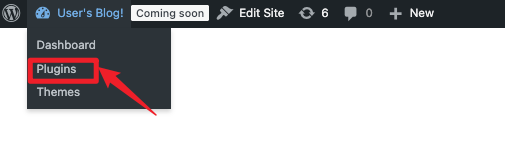
2. Click [Plugins], then select [Installed Plugins] and click [Add Plugin].
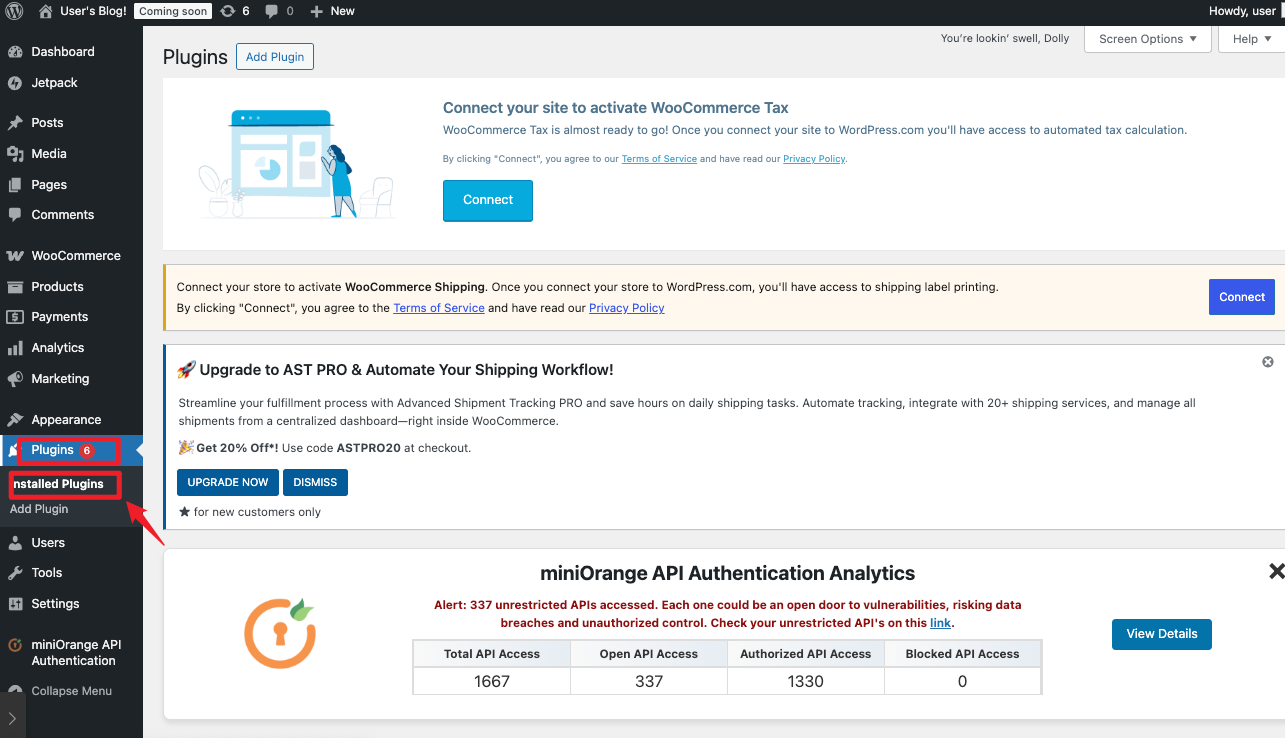
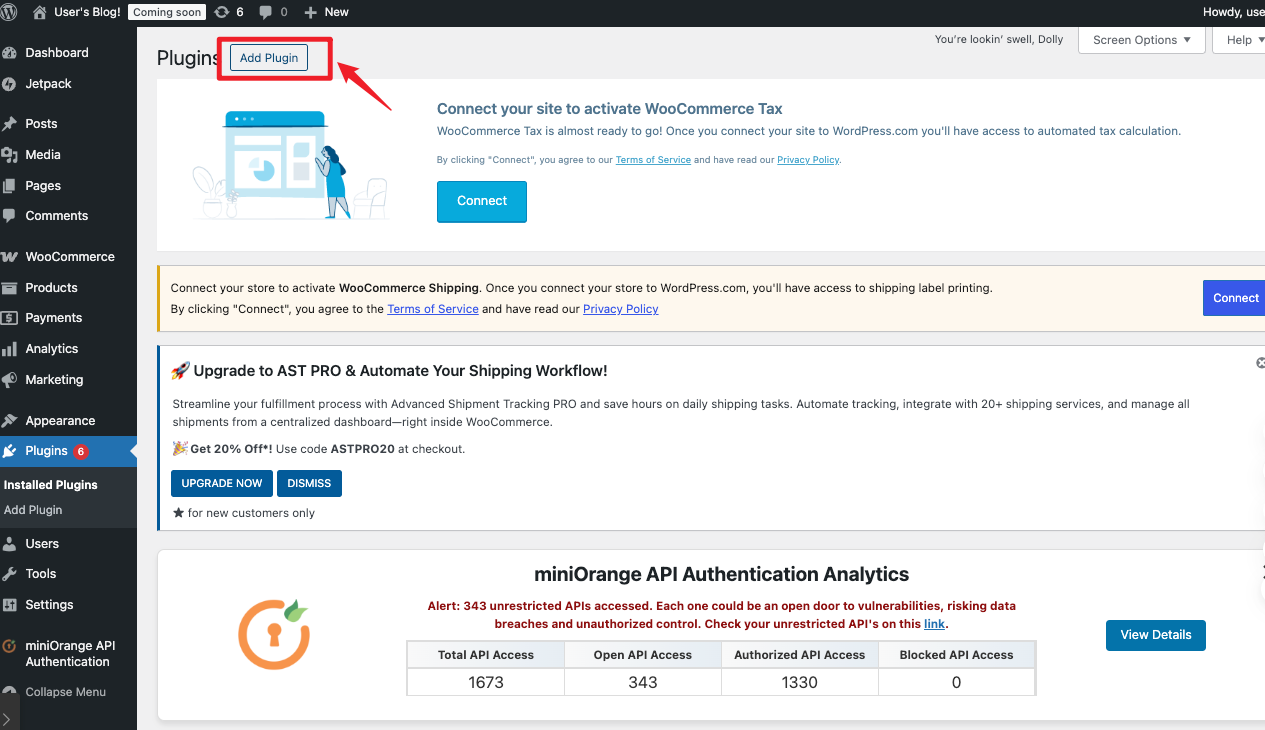
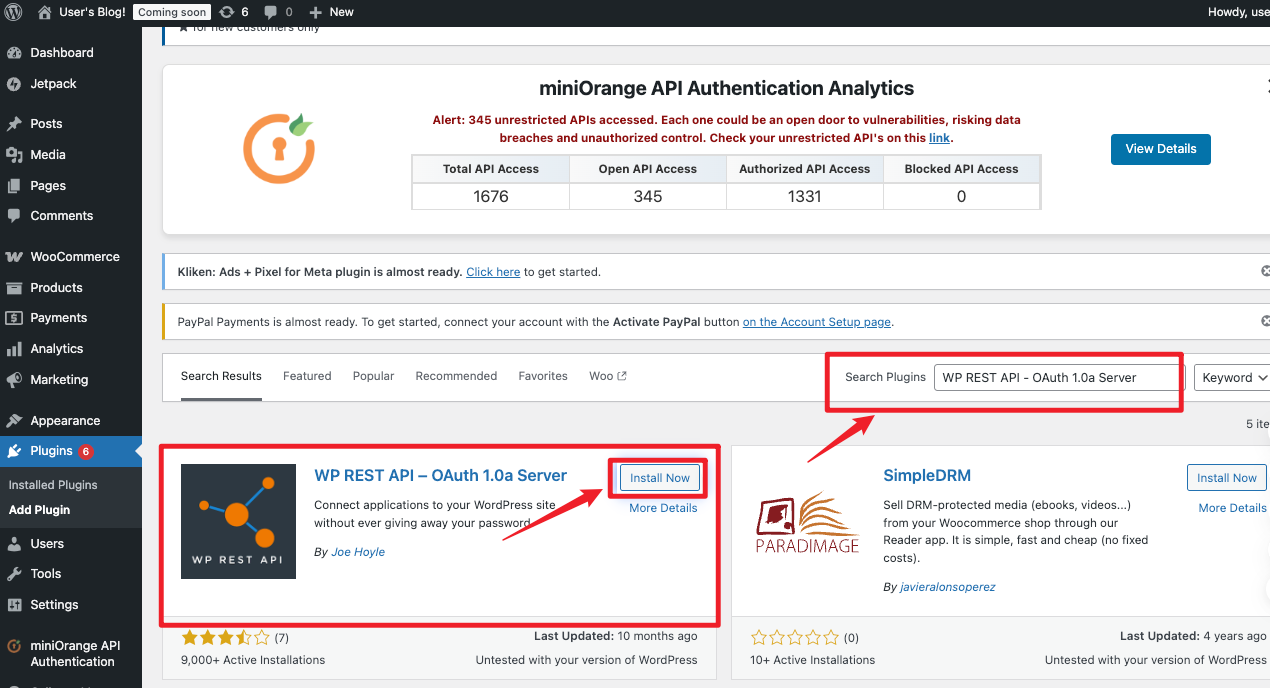
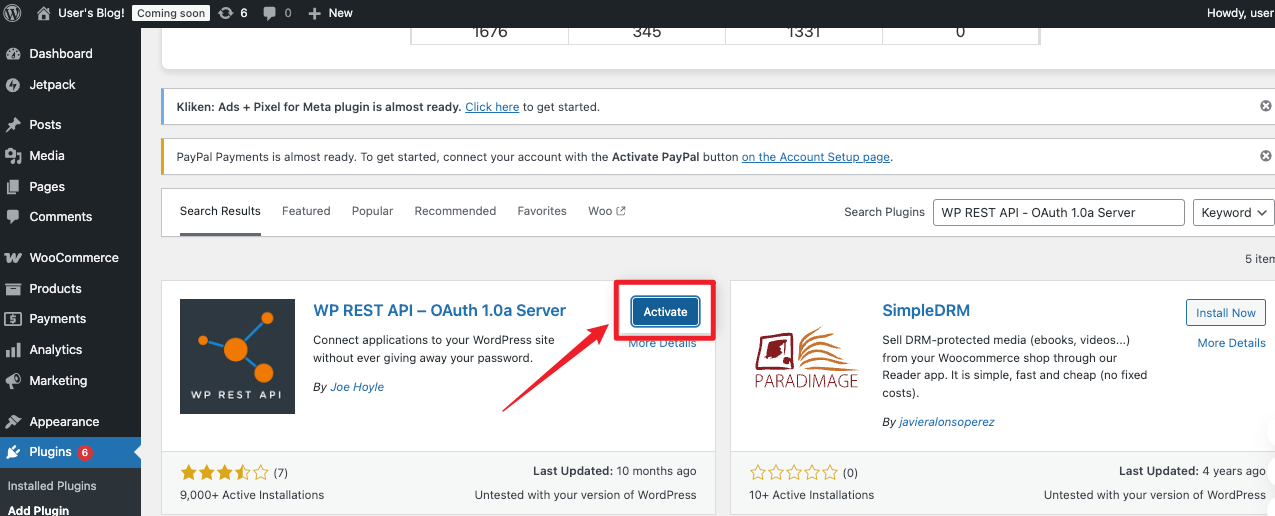
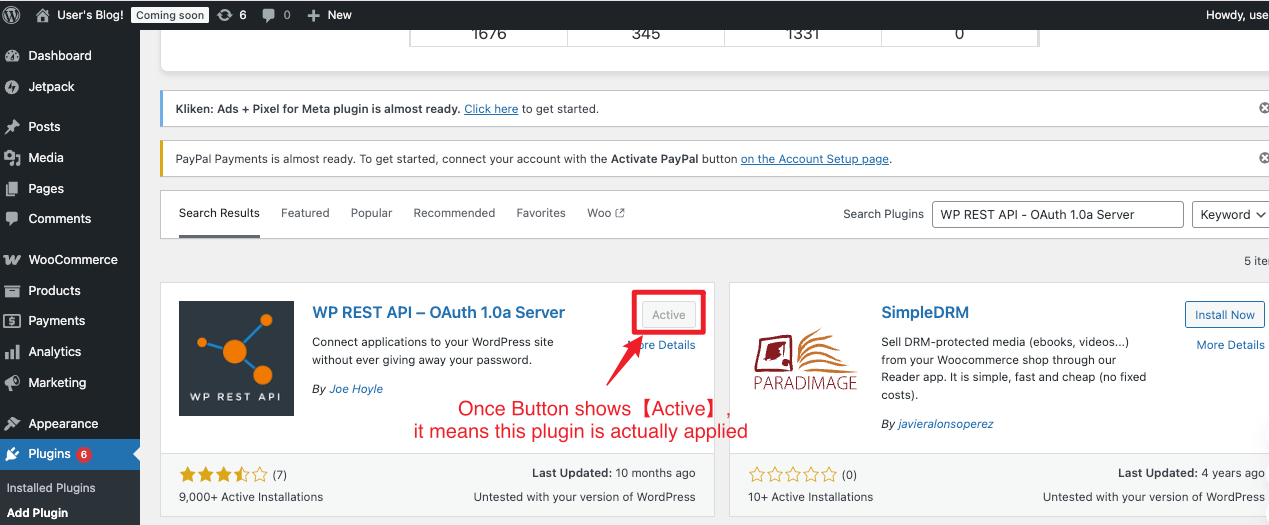
3. Search for [WP REST API - OAuth 1.0a Server] , click [Install] and then click [Active].
⚠️ Note that it takes effect only when the button shows as 'Active'.
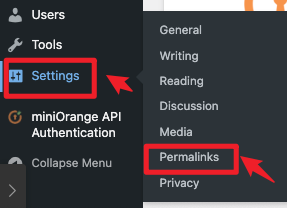
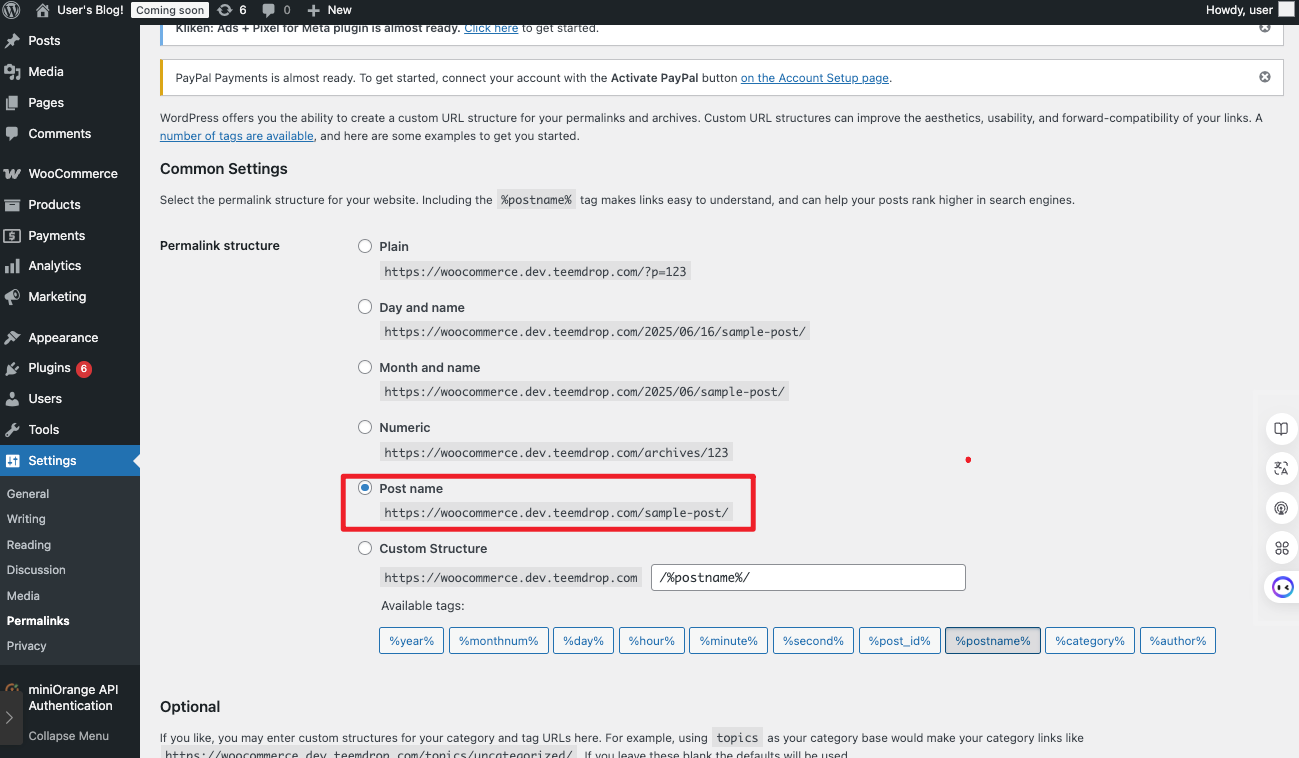
4. Go to Settings-> Permalinks, select the [Post Name] option, and click "Save Changes."
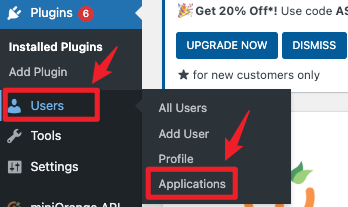
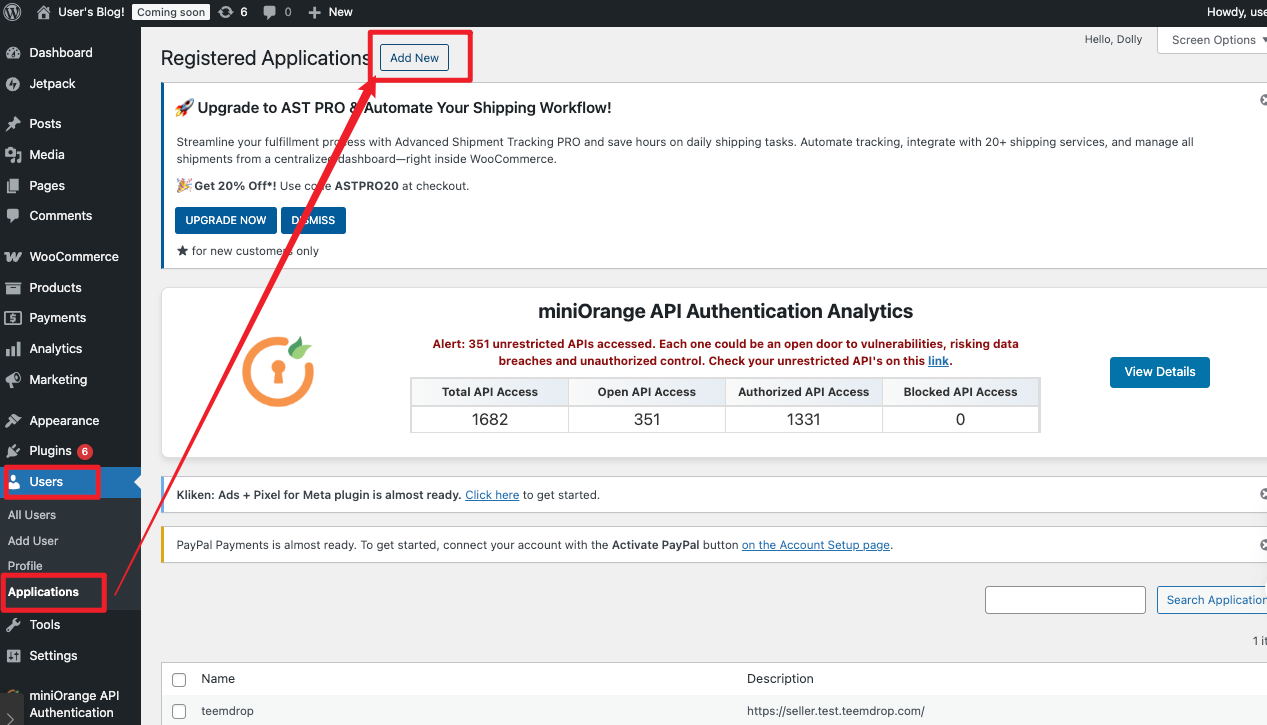
5. Go to Users - > Applications, click [Add New]
⚠️ If ‘Applications’ has not displayed, please try to refresh the page (reload the platform);
If it's still missing? This indicates that the required plugin is not installed or enabled.
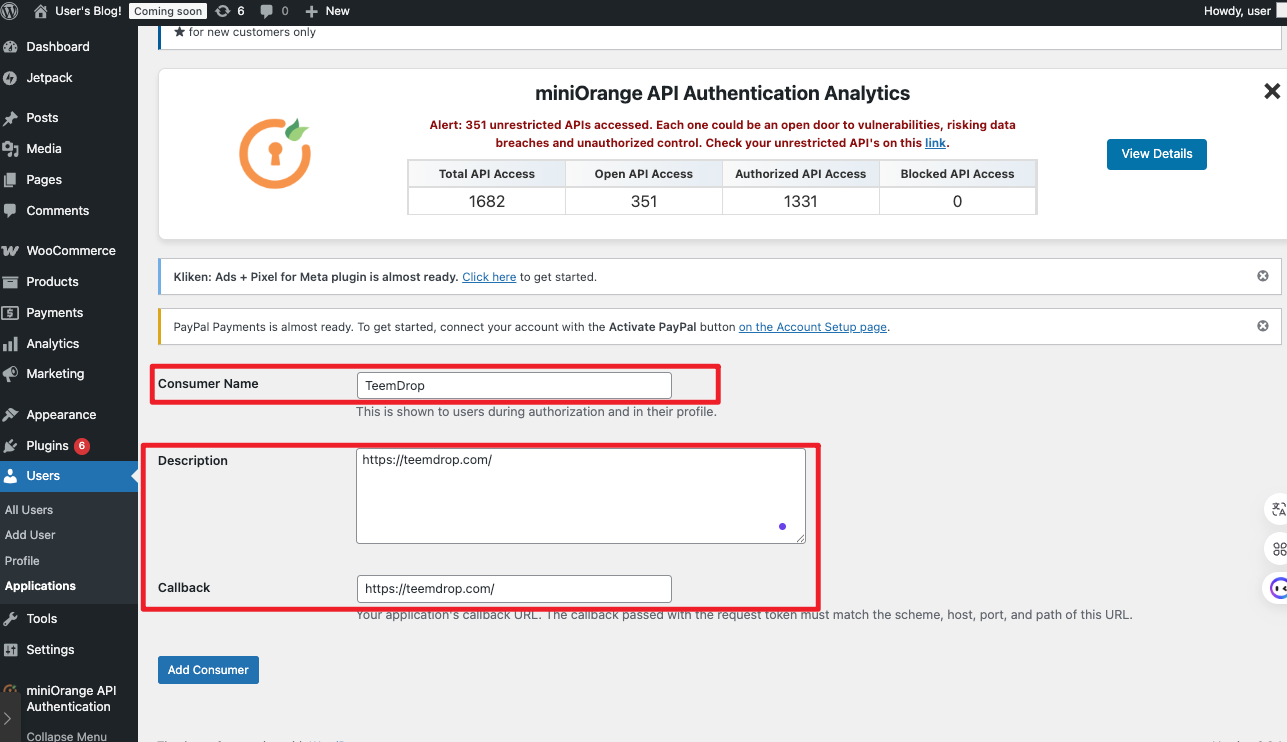
6. Add TeemDrop to the Customer Name field and add TeemDrop | World-Class AI Dropshipping Fulfillment in both the Description and Callback sections.
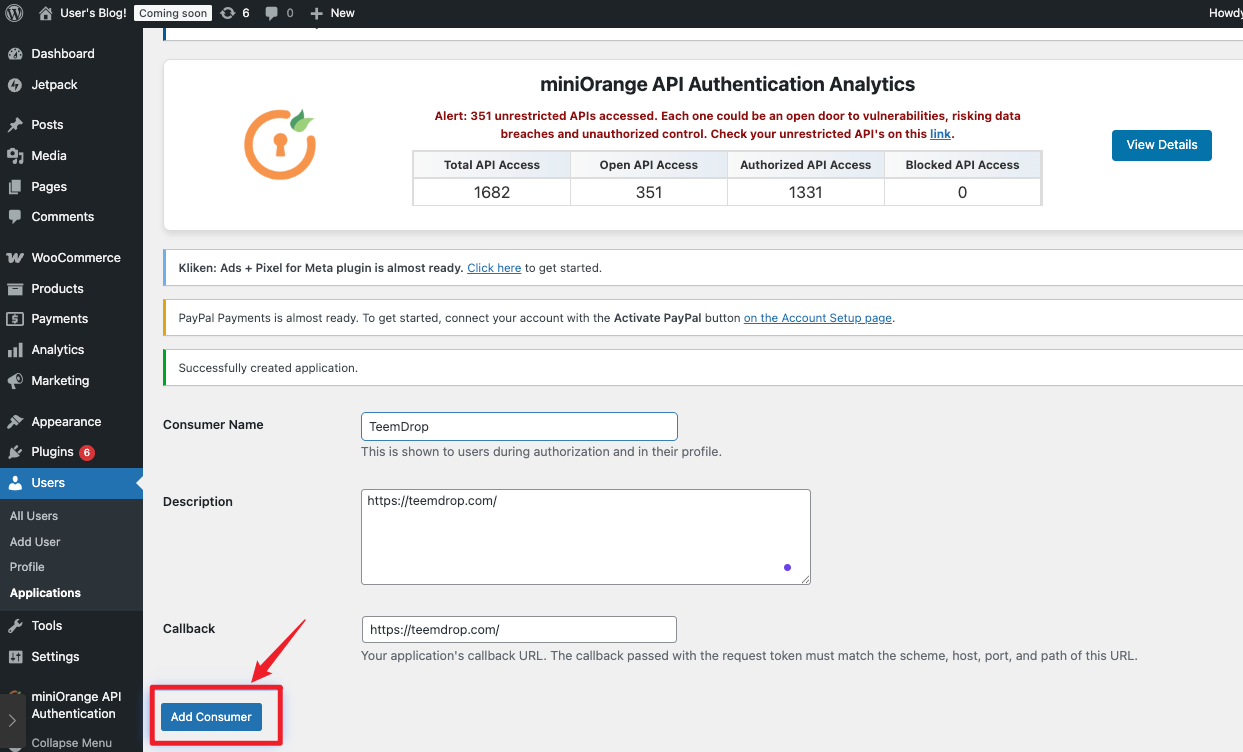
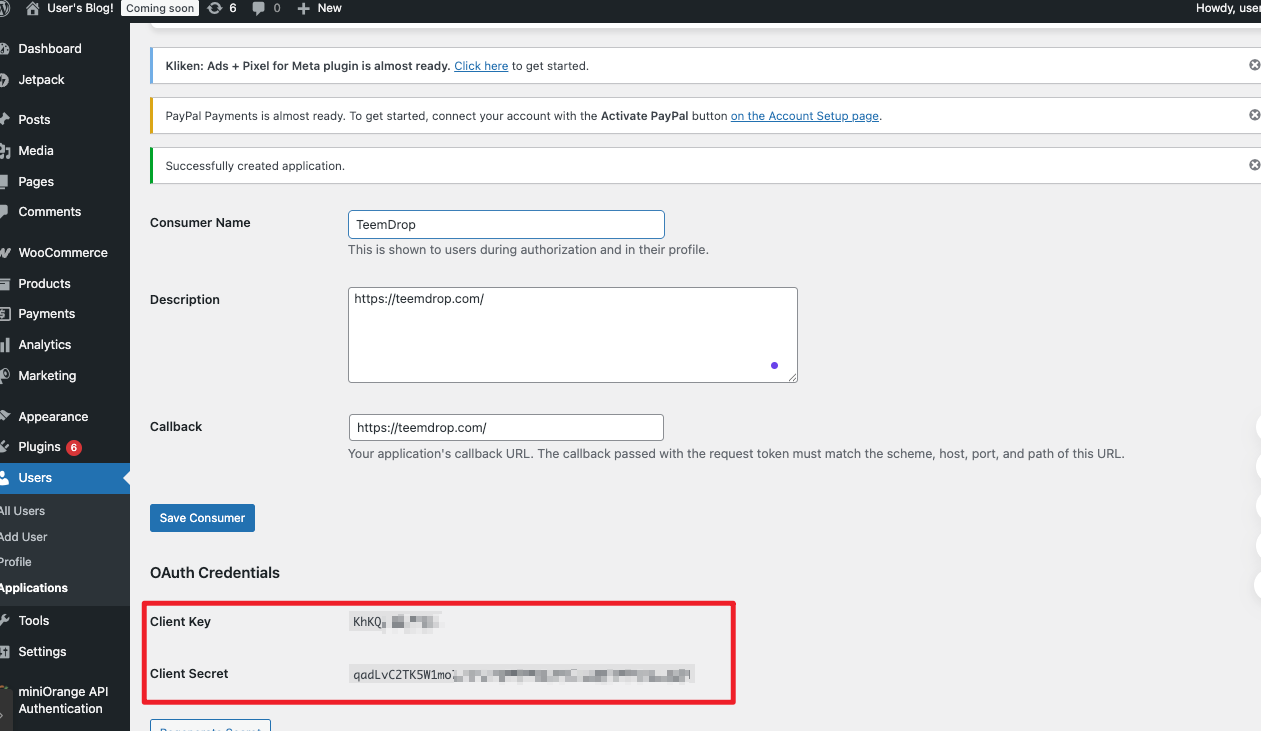
7. Click [Add Consumer], then retrieve and copy the Client Key and Client Secret.
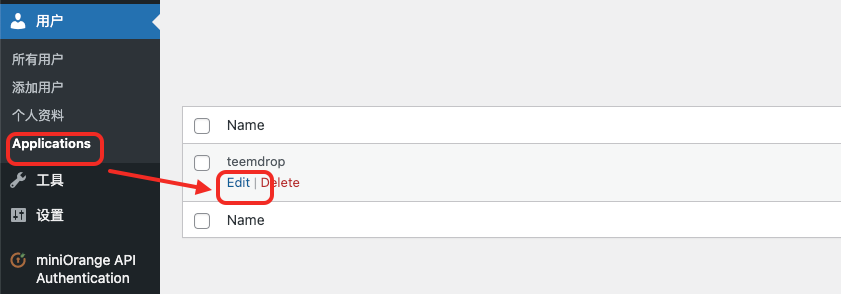
⚠️ If you forget to copy Client Key and Client Secret information , you can view the records on the by editing the Application's information.
⭐️How to get my Verification Code?
-
After filling in your Site URL, Client Key, and Client Secret on TeemDrop, then click 【Next】.
-
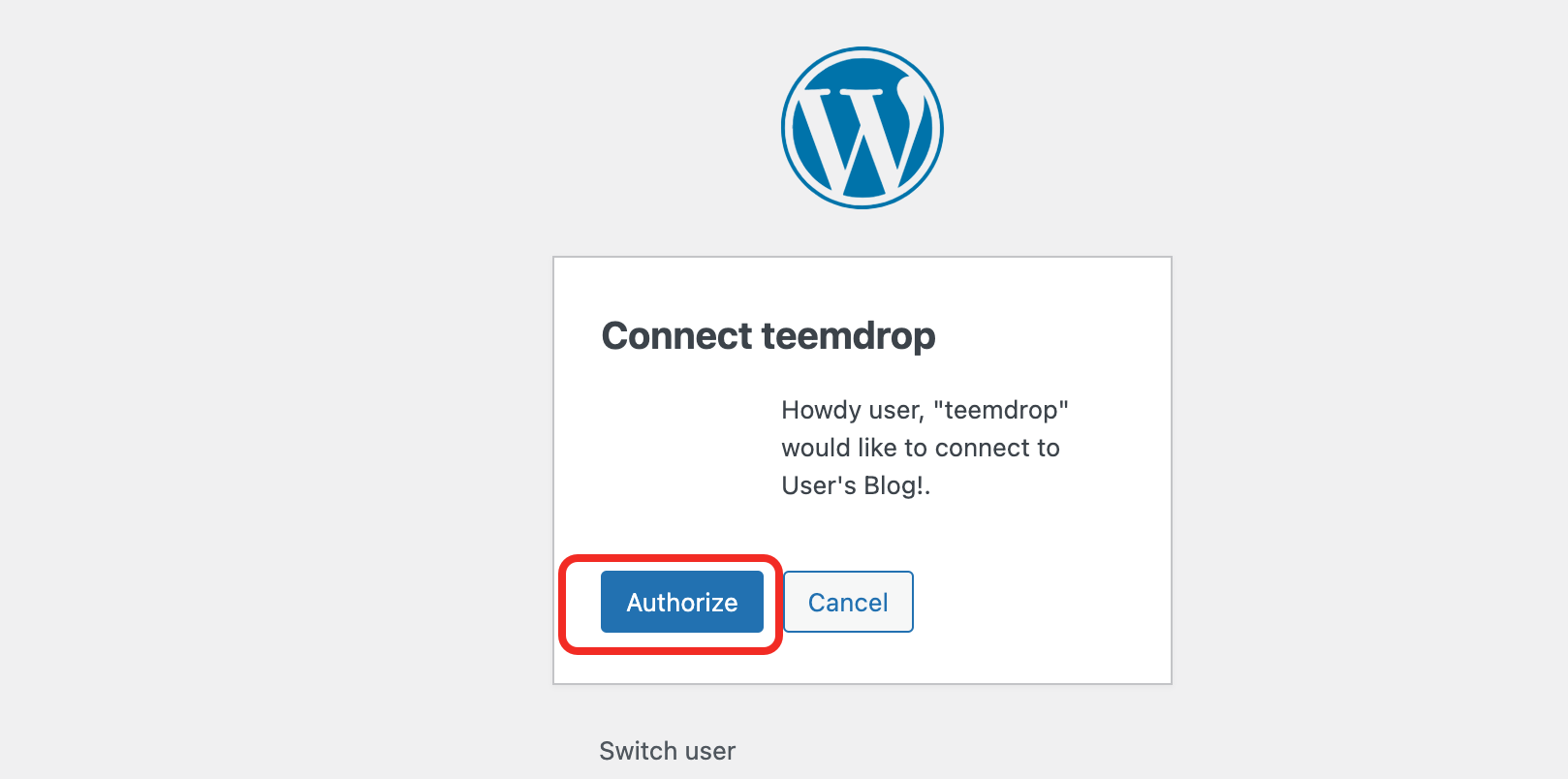
You’ll be redirected to WooCommerce. Click 【Authorize】 to generate your Verification Code.