Apr 09, 2026
How to create bundle for products
Bundled products refer to two or more products sold together. Below, we’ll explain how to create a product bundle.
Note: Only products in your store can create bundles. Additionally, the product must have variants in order to create a bundle.
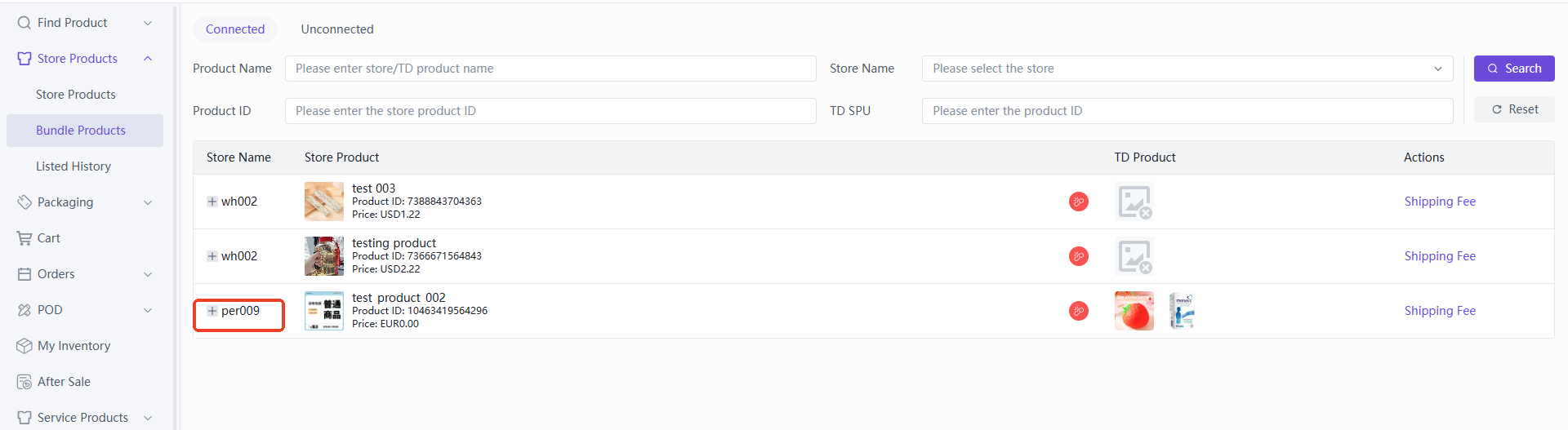
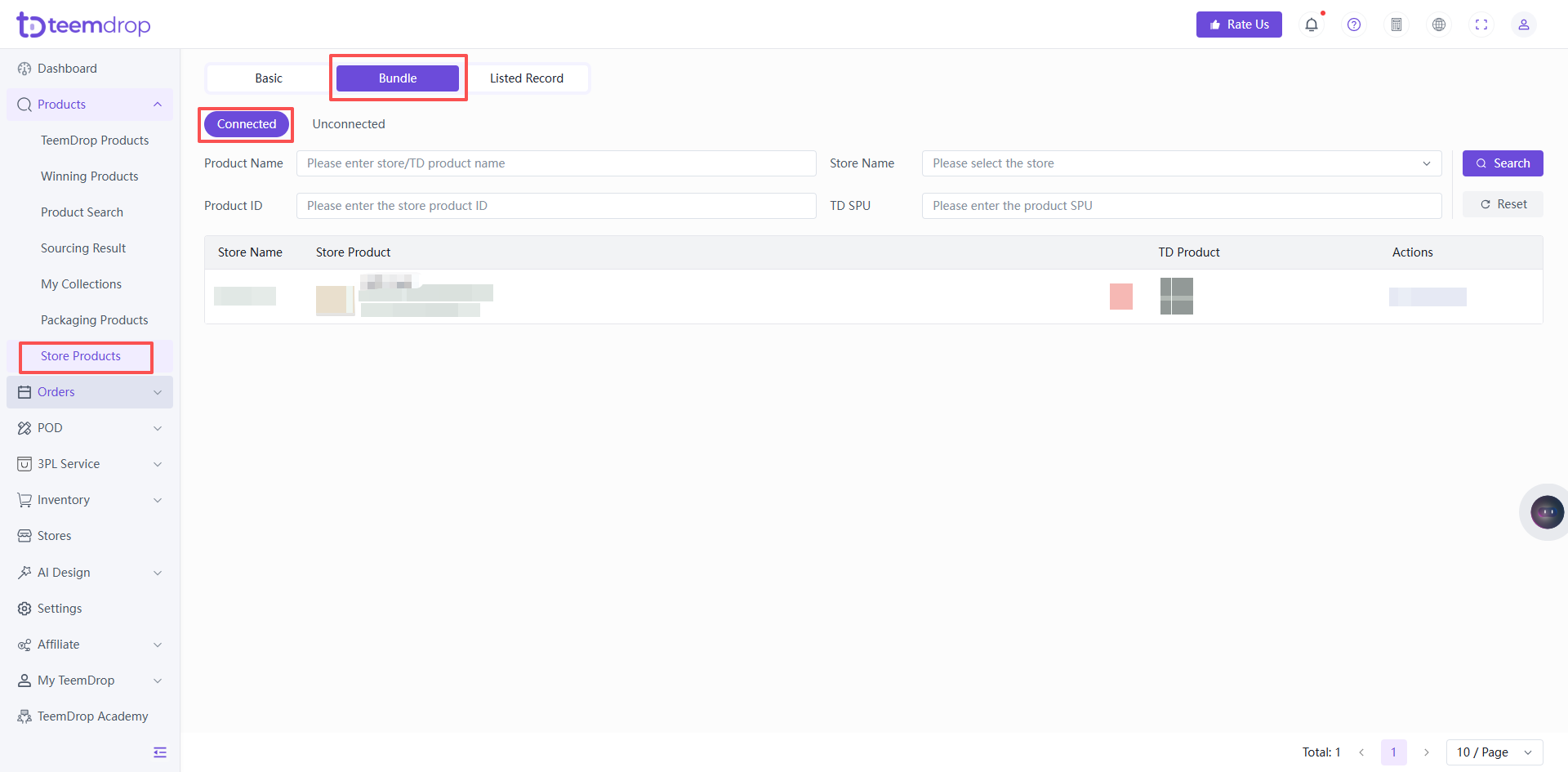
“Connected” only displays products that have been bundled, so if you haven't created any yet, it's normal for nothing to appear here.
- The first step in creating a bundled product is to go to “unconnected”
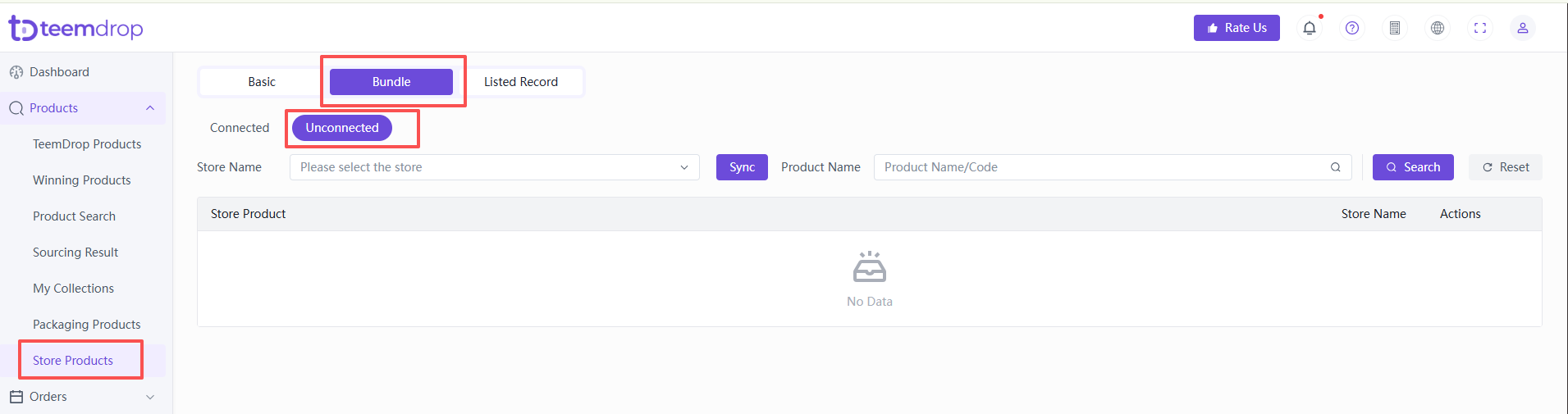
- Then select a store
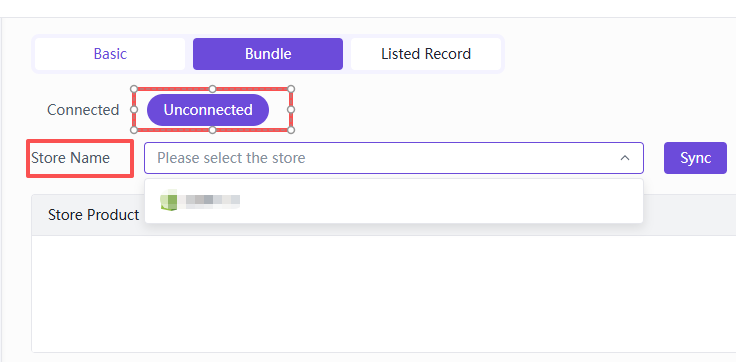
- Once you've made your selection, the products in this store will be displayed.
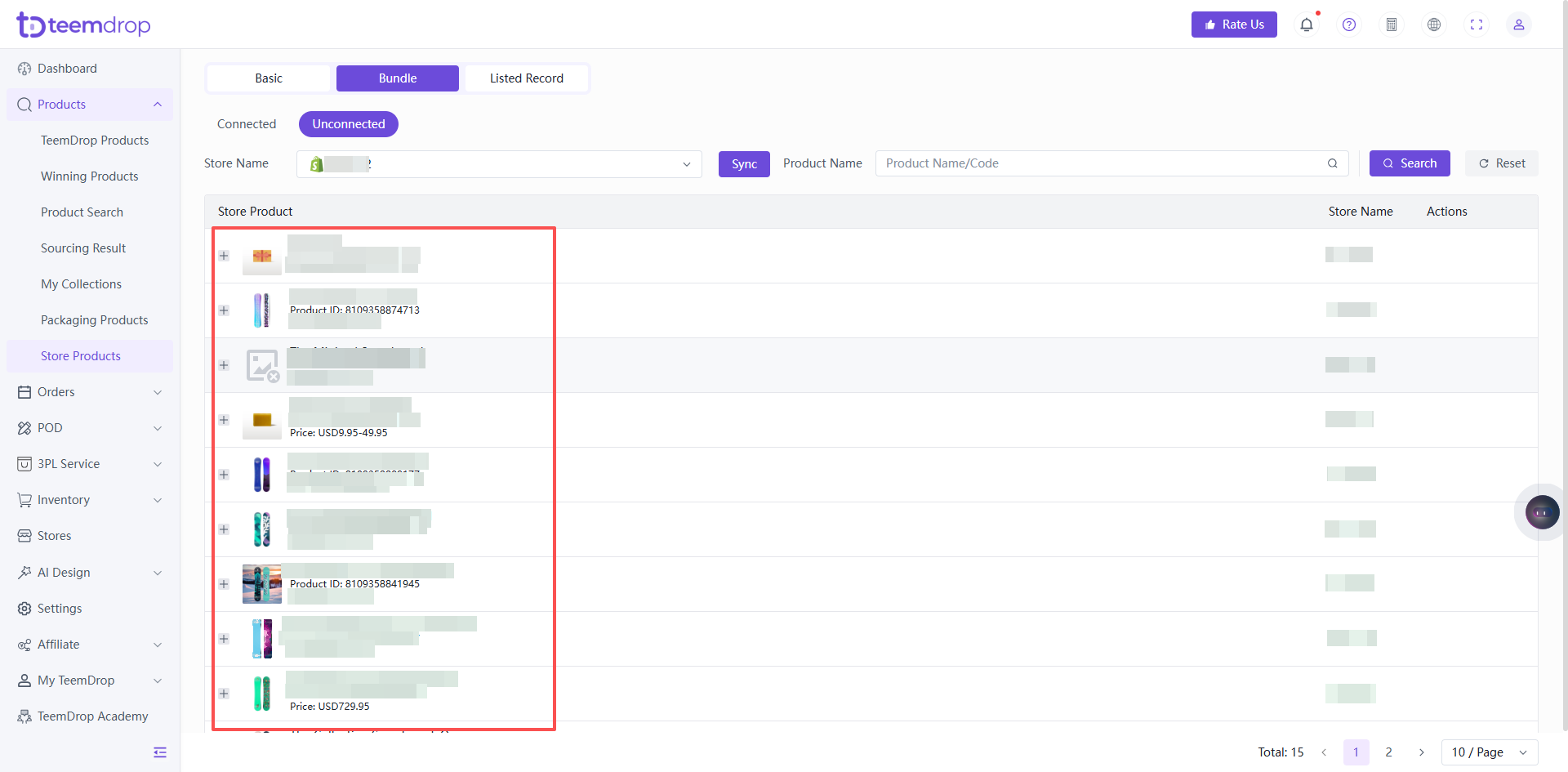
- Then select the product you want to create a bundle for, and click the plus sign in front of it to expand the variants.
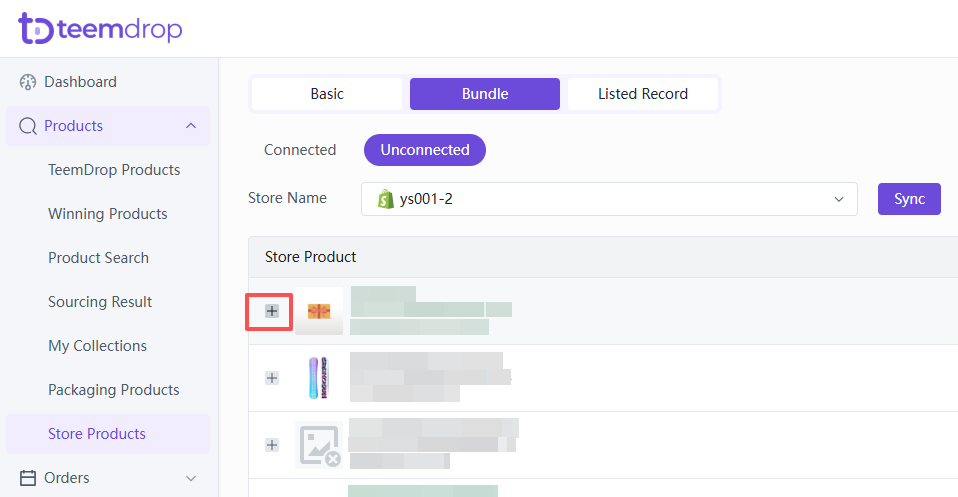

- Find the variants you want to bundle, then click “Create Bundle” on the right.

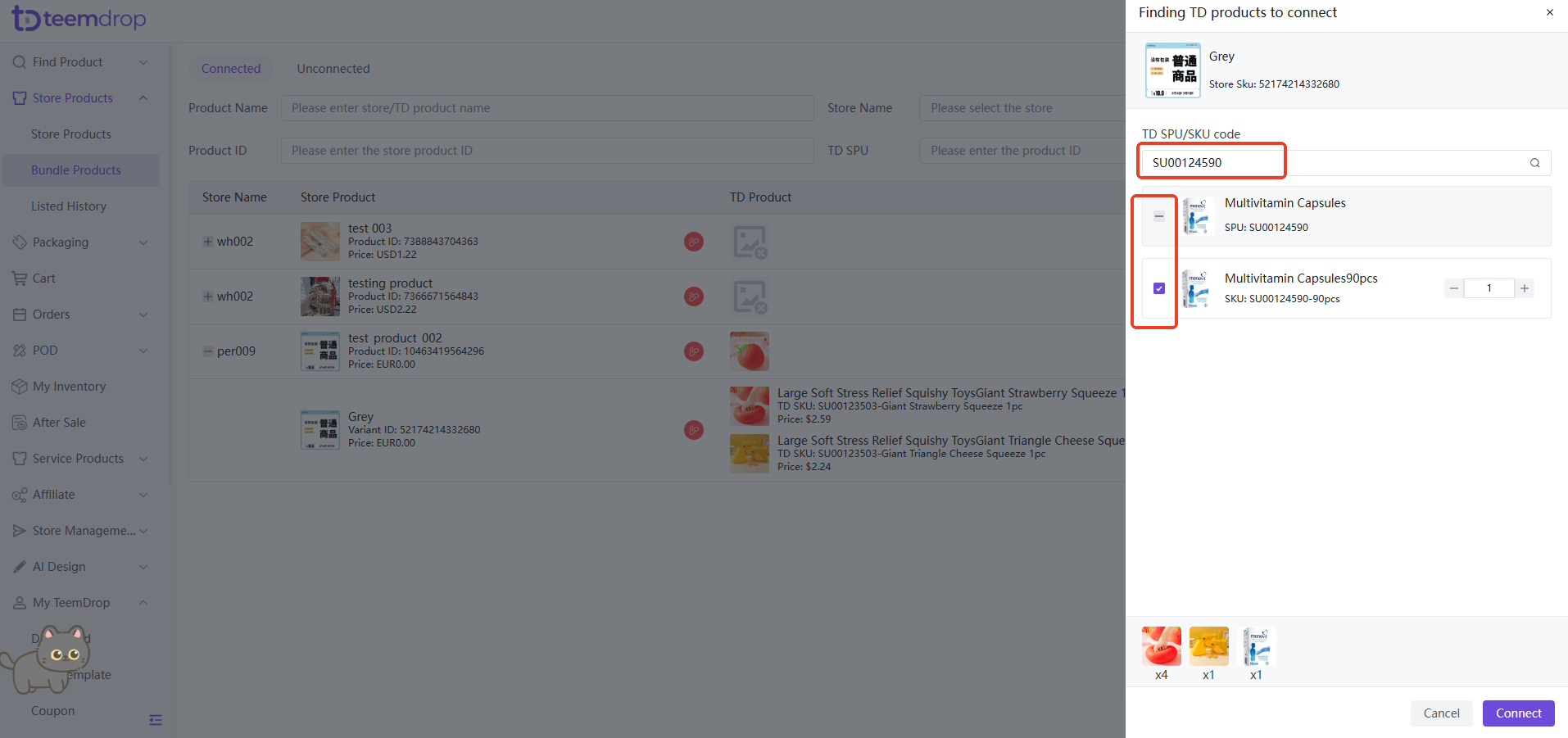
- Enter the SPU for another product here, then click the magnifying glass icon to search.
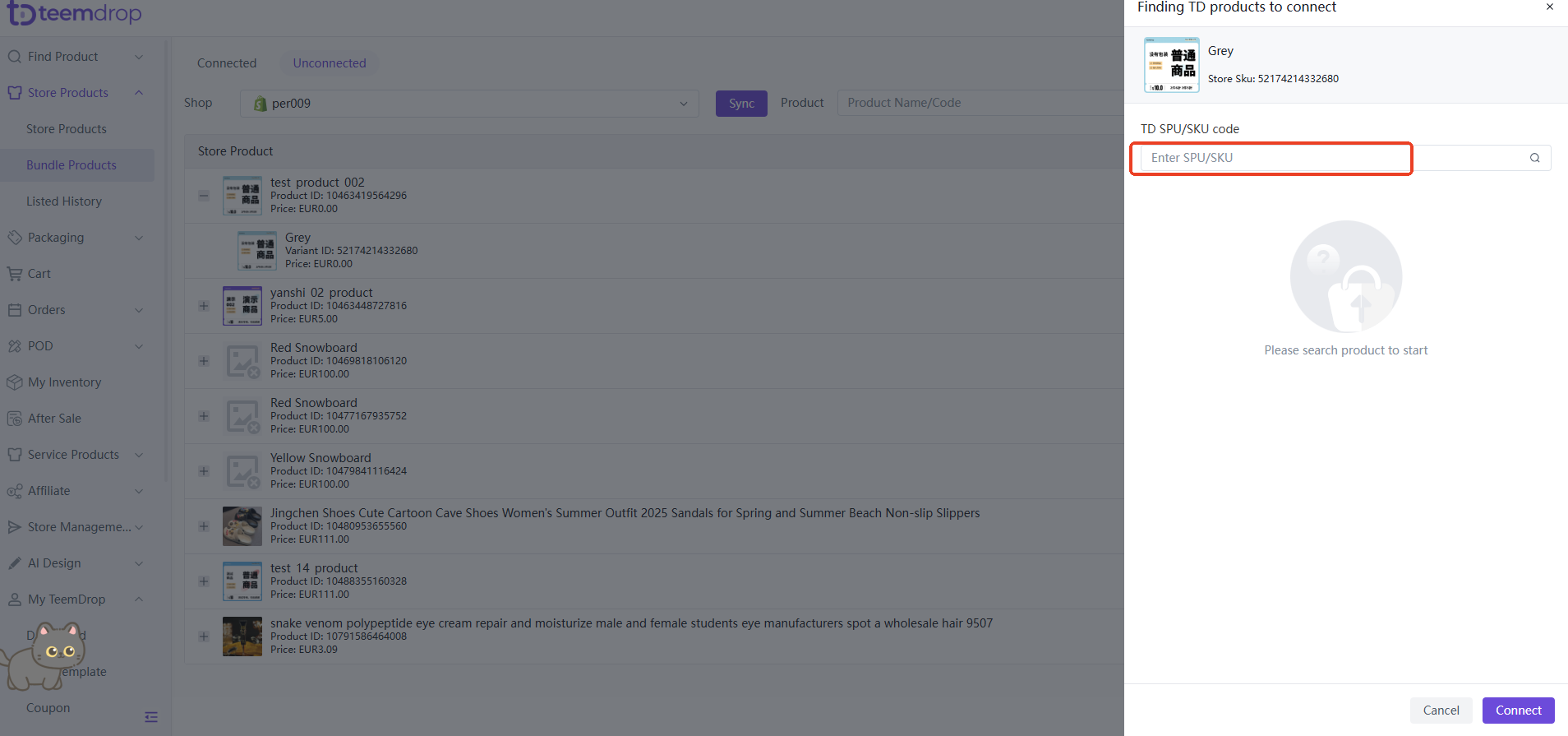
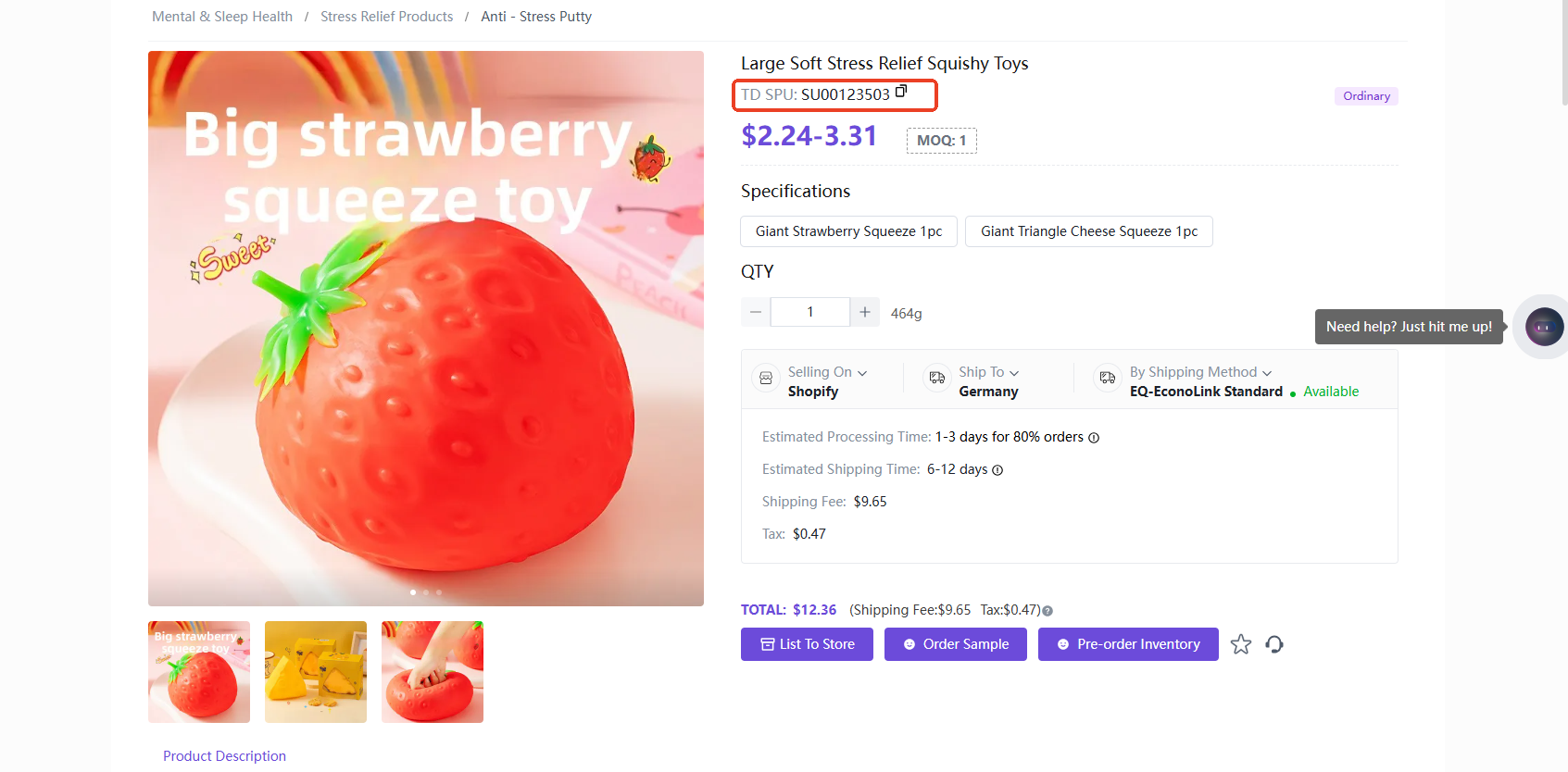
- You can view the product's SPU directly on the product page.
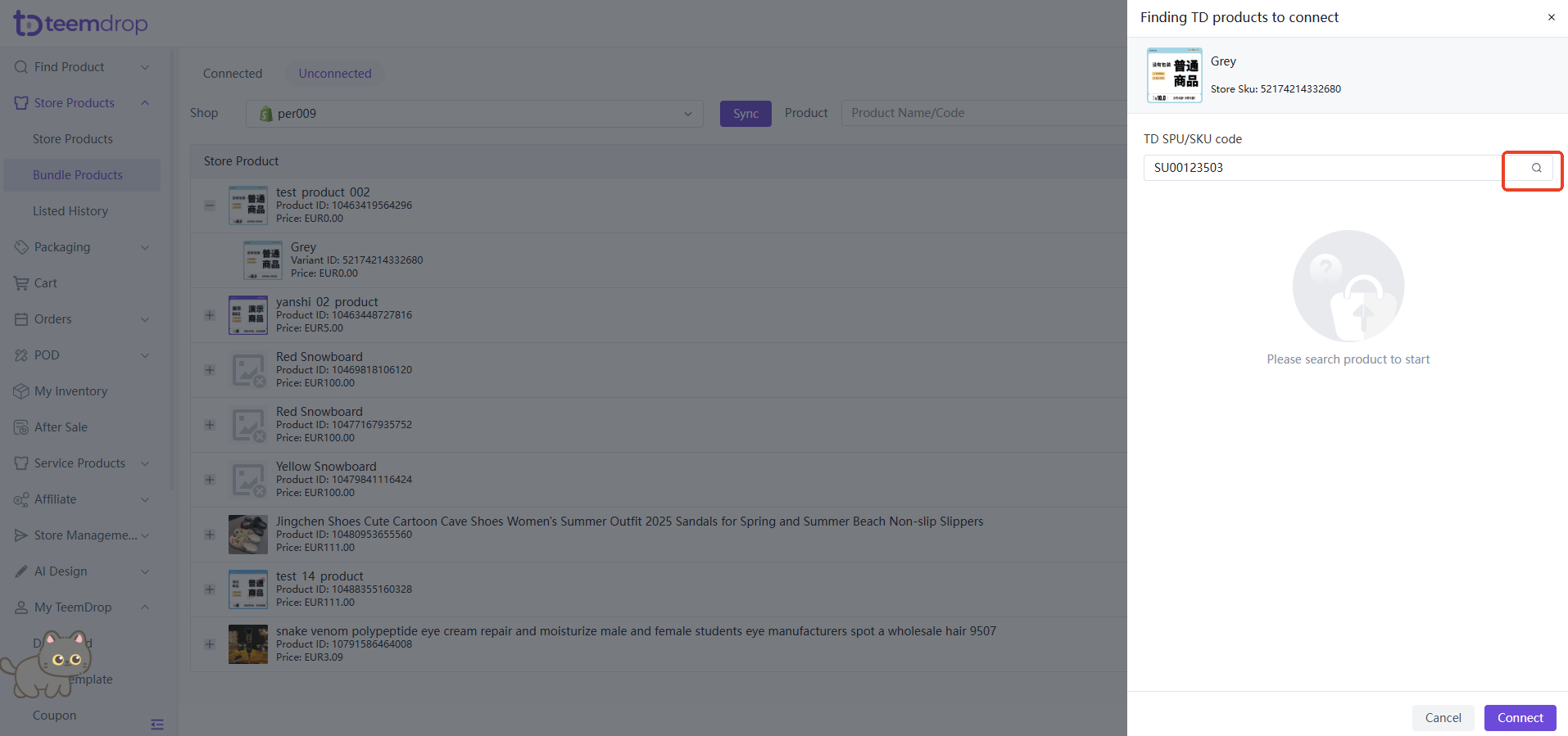
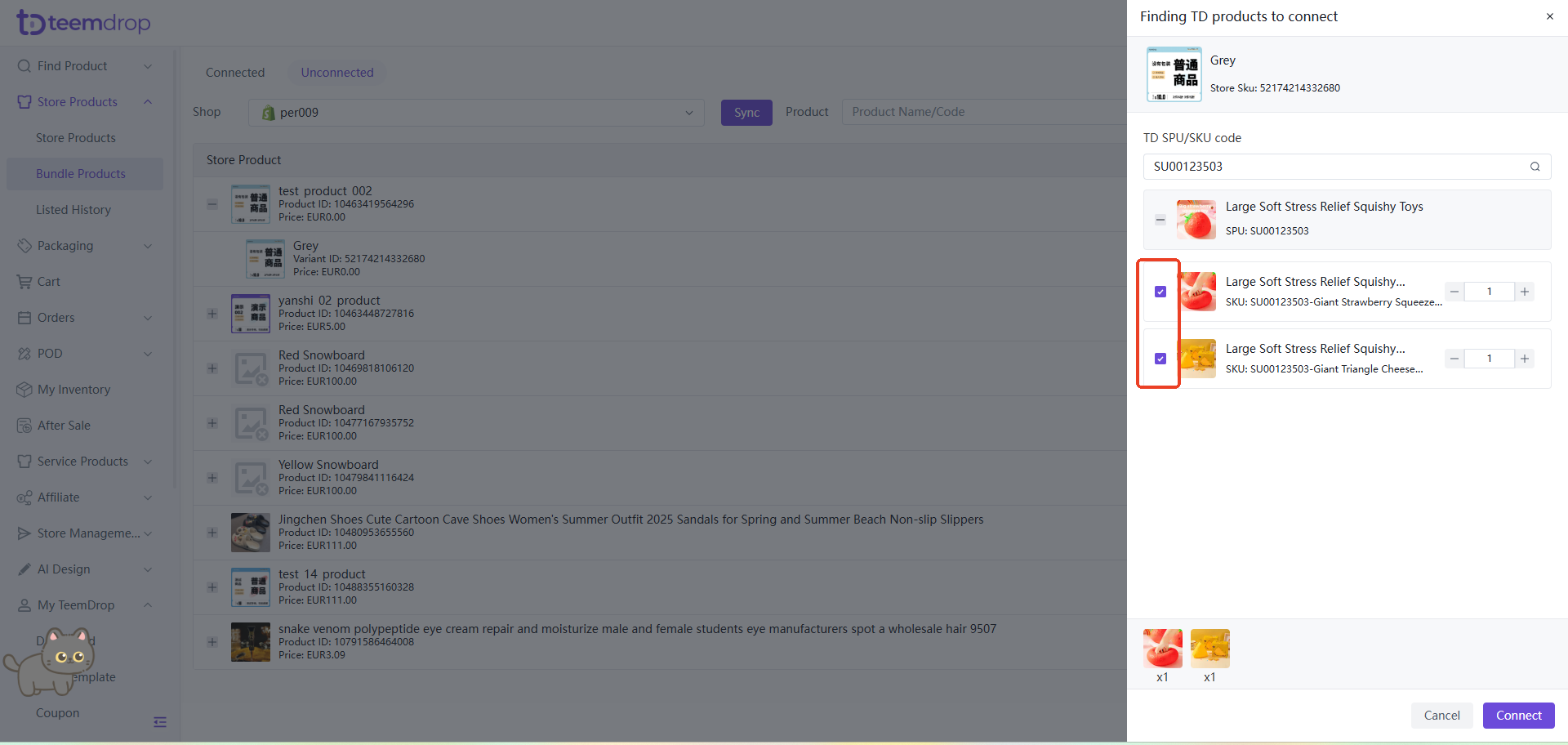
- Then you can select the variants you want to bundle.
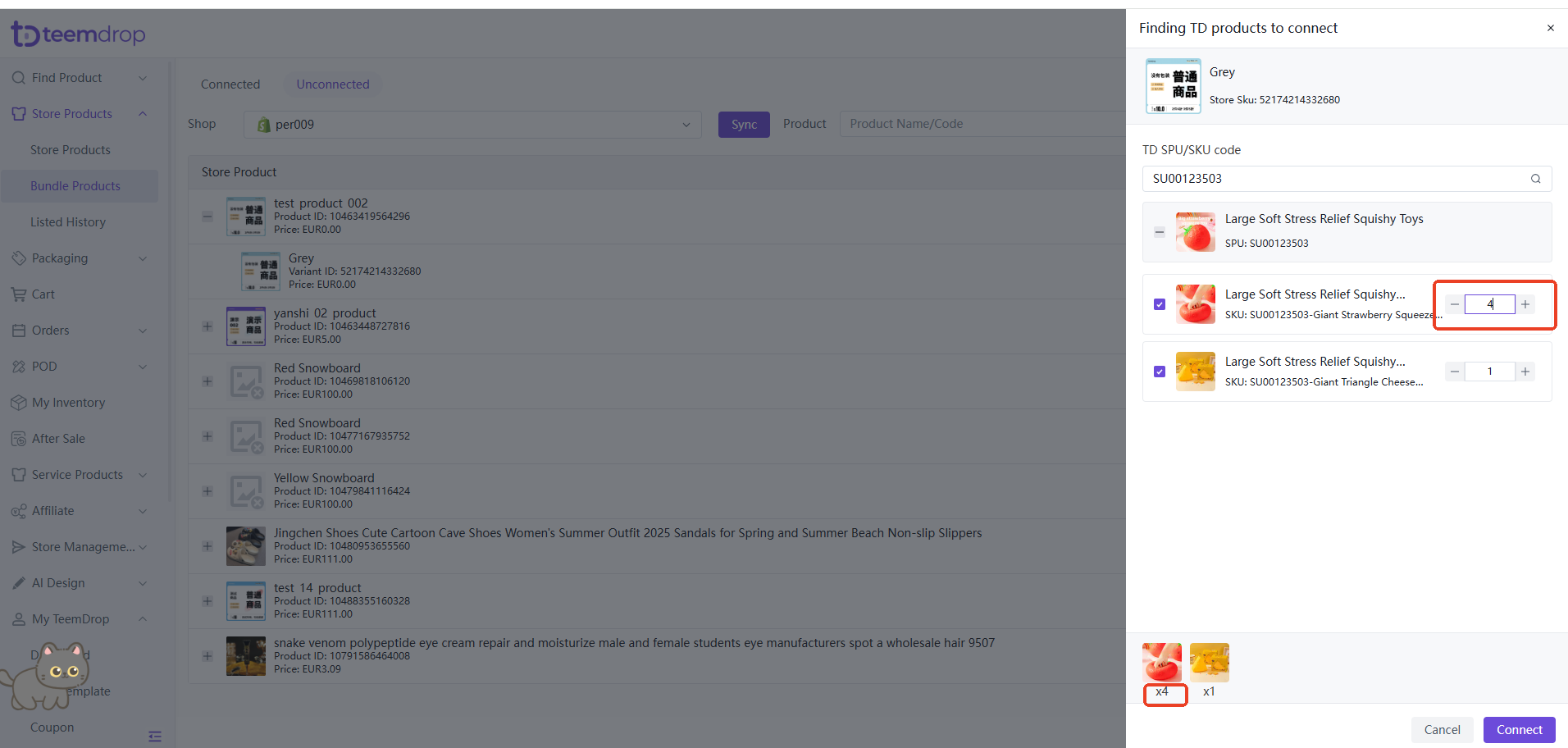
- You can also select the number of bundles here:
- If you want to bundle other products, select the first product, then delete the SPU from the search box, enter the SPU for the other product, and follow the same steps to select it.
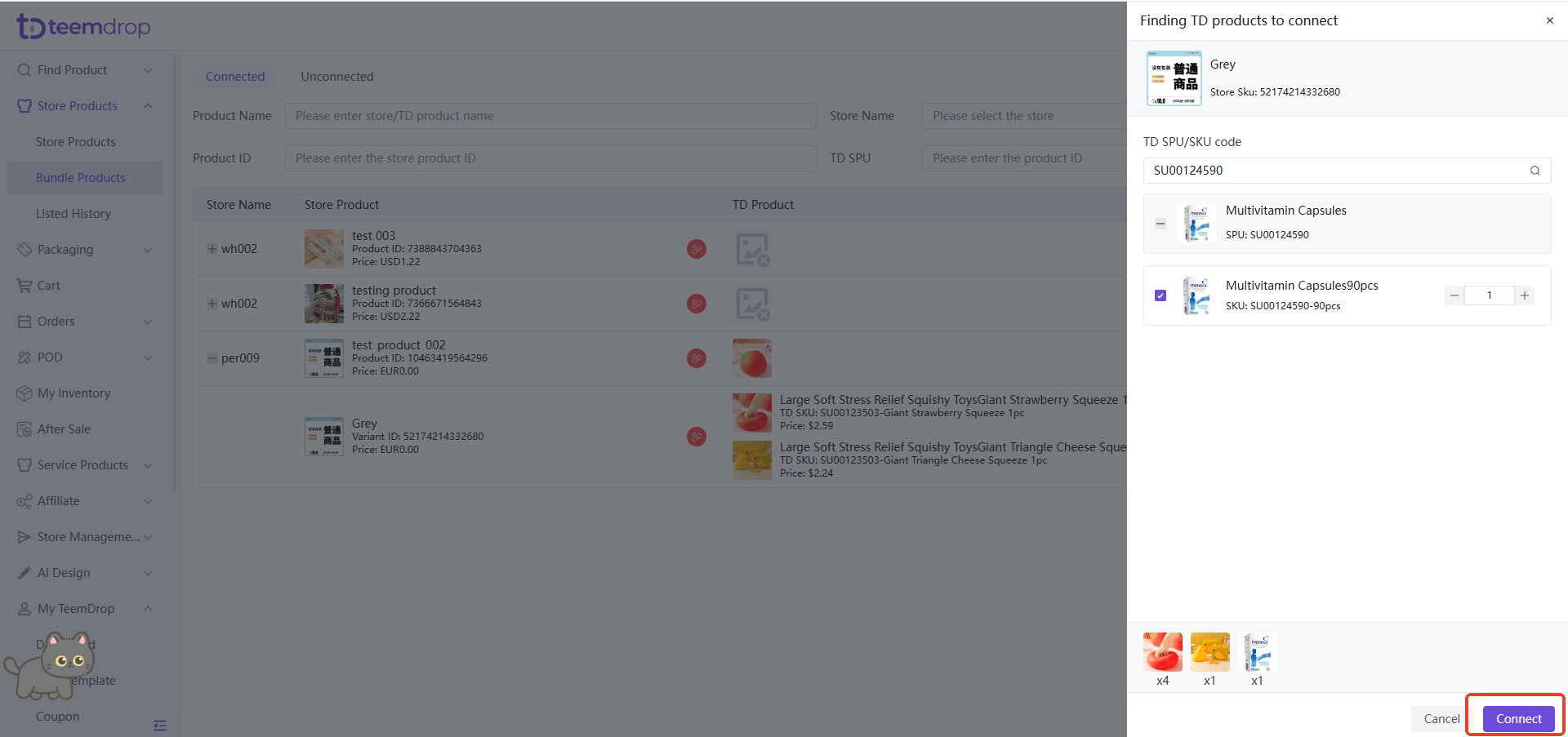
- Click “Connect” to complete the bundling
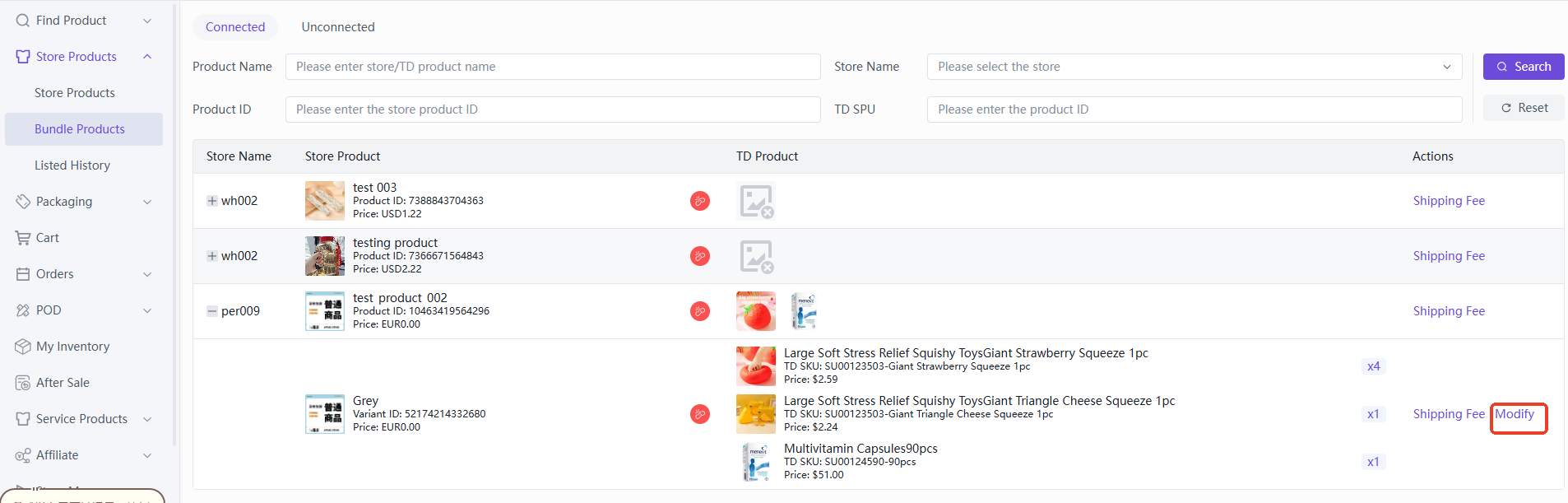
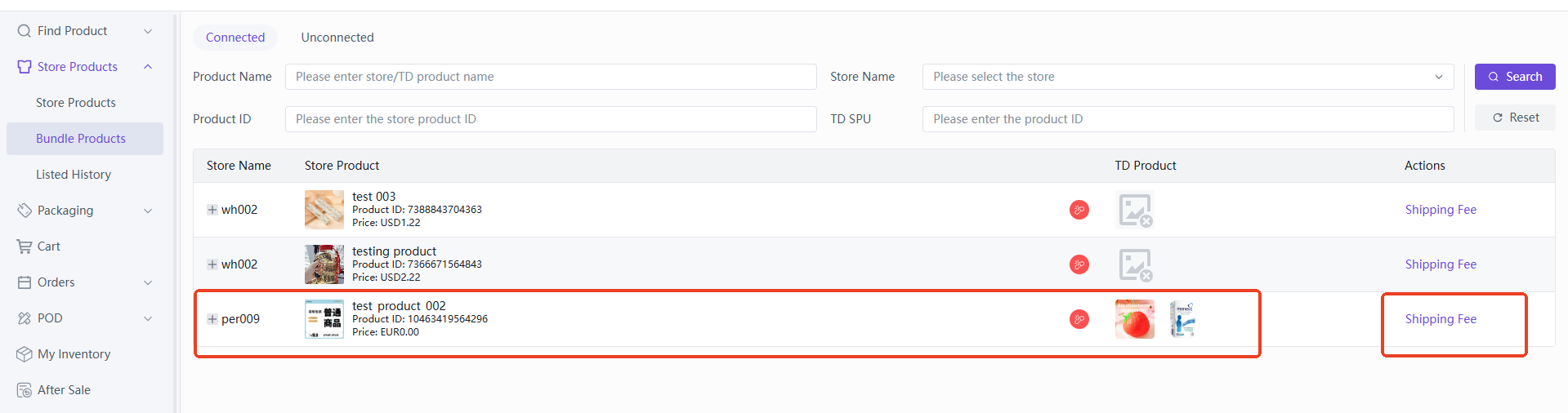
- Once the bundle is successfully created, it will appear here under “Connected.”
The system will automatically calculate the shipping cost. You can click the shipping fee to view the shipping details for the bundle.
If you want to edit an existing bundle, just click the plus sign and select “Modify.”