How to Connect Your Online Store to TeemDrop: Shopify, WooCommerce, eBay & Wix
Running an online store involves more than managing product listings and customer orders. Sellers also need to source products, check quality, and coordinate order fulfillment. Handling these tasks across separate platforms can become time-consuming as a business grows.
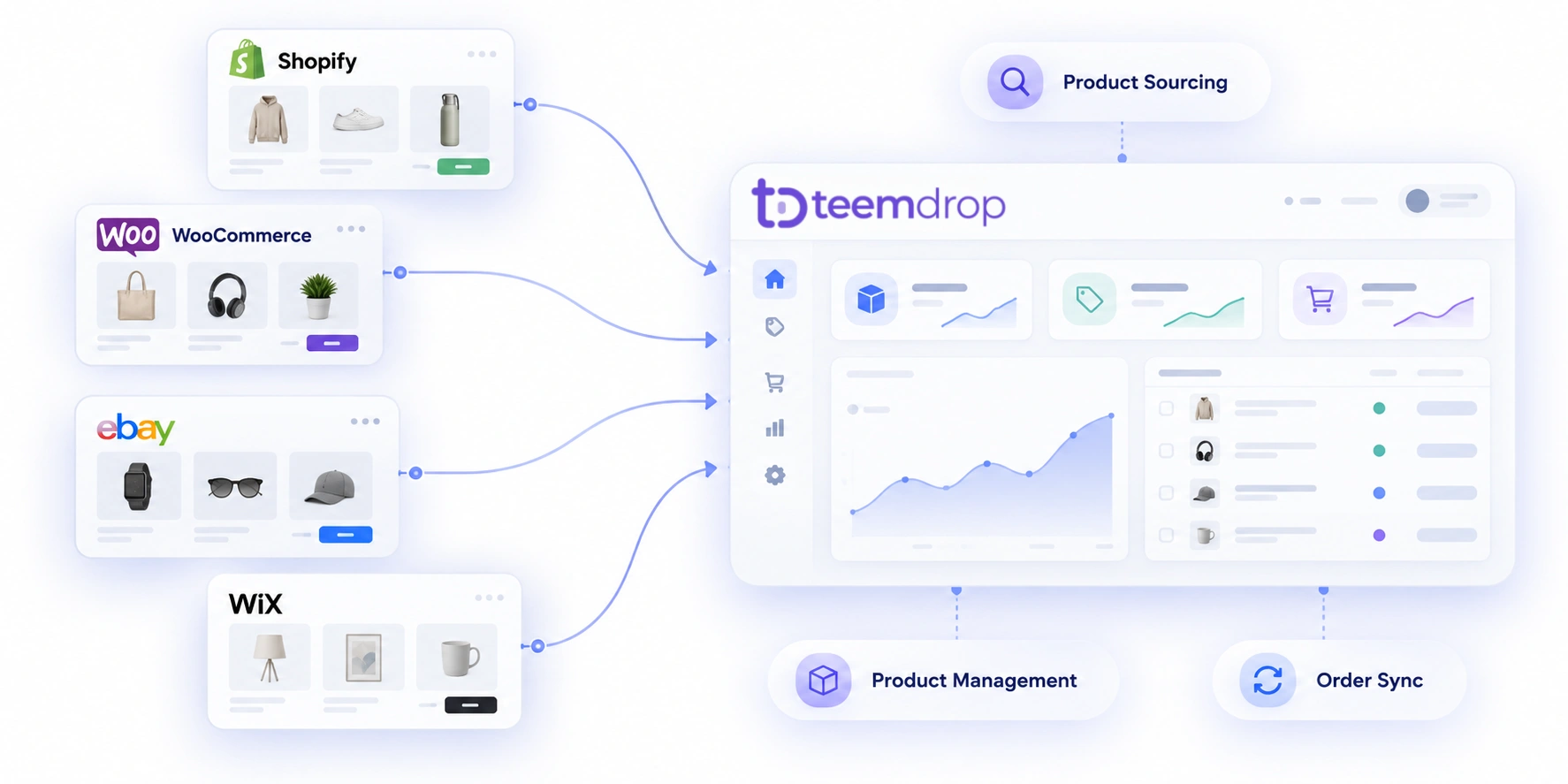
TeemDrop connects Shopify, WooCommerce, eBay, and Wix stores with product sourcing and fulfillment services. Once your store is authorized, you can connect existing products, request new items, publish product listings, and synchronize eligible orders through one dashboard.
In this guide, you'll learn how to connect your store to TeemDrop, work with products you already sell, request new products, and sync customer orders for fulfillment.
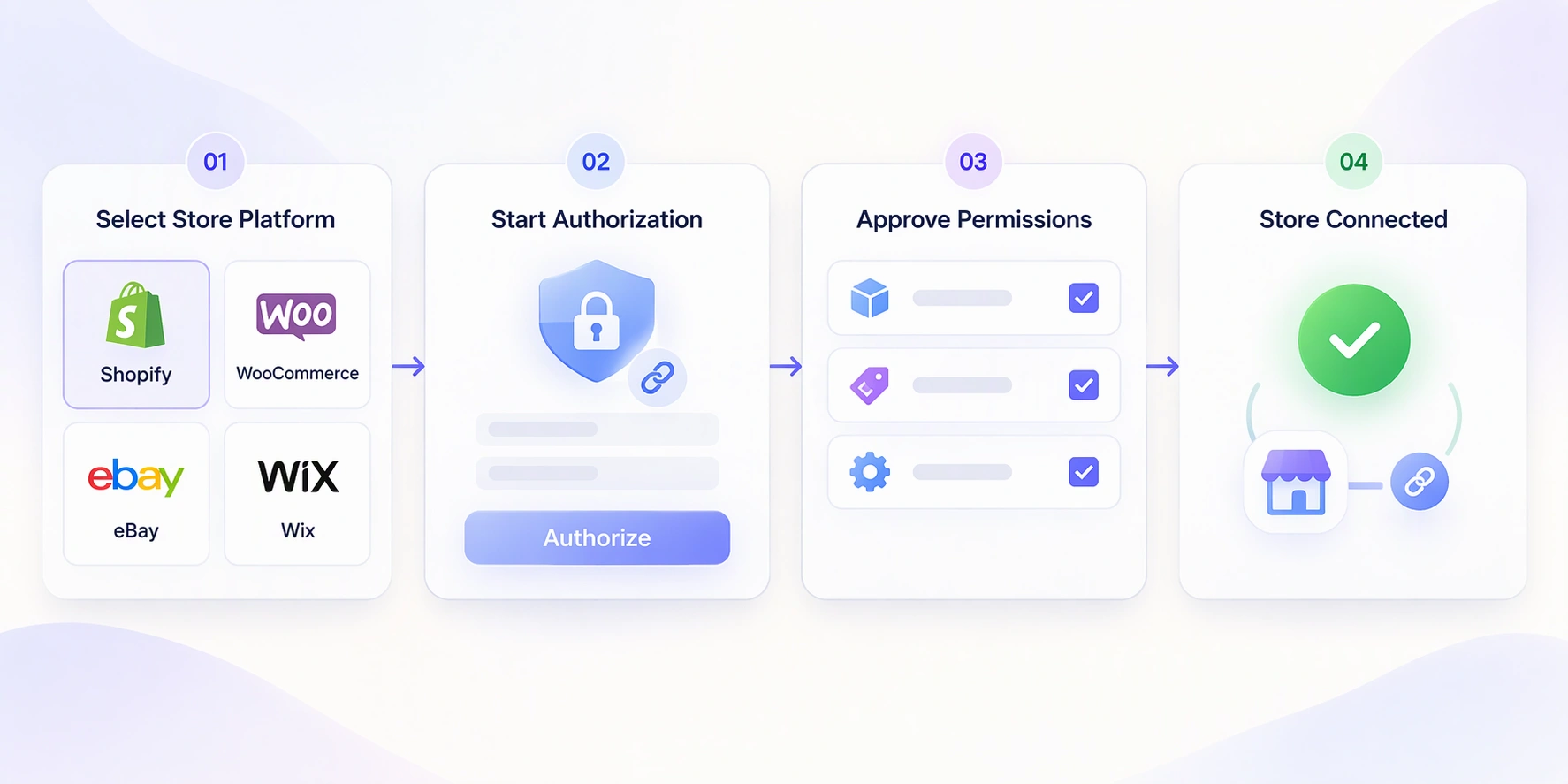
Quick Answer: How Do You Connect Your Store to TeemDrop?
- Log in to your TeemDrop account.
- Go to Stores → Add Store.
- Select Shopify, WooCommerce, eBay, or Wix.
- Complete the platform-specific authorization steps.
- Return to TeemDrop and verify that the store is authorized.
After authorization, you can connect existing products, submit sourcing requests, list products, and sync eligible orders for fulfillment.
Why Connect Your Online Store to TeemDrop?
Connecting your store to a dropshipping fulfillment platform can simplify daily operations. Instead of managing suppliers, products, and order processing separately, you can handle key tasks through one connected workflow.
Here are three practical reasons to connect your store to TeemDrop.
Manage Dropshipping Operations in One Platform
Running a dropshipping business often involves separate tools for product sourcing, order management, and shipping. Managing these activities across different platforms can make daily operations harder to track.
TeemDrop connects your online store with its sourcing and fulfillment services. After authorization, you can manage product connections and receive eligible store orders through your TeemDrop account.
Simplify Product Sourcing and Management
You don't need to rebuild your product catalog when connecting an existing store. TeemDrop allows you to match your current listings with corresponding TeemDrop products or submit a sourcing request when a suitable match is unavailable.
You can also use its AI-powered product sourcing capabilities to find products and access suppliers through channels such as 1688 and Taobao.
Automate Eligible Order Synchronization and Fulfillment
Once your store is authorized and the relevant products are connected, eligible customer orders can sync to TeemDrop. You can review order details, complete the required payment, and proceed with fulfillment.
Product inspections and shipping options also help sellers manage product quality and delivery after an order is placed.
What You Need Before Connecting Your Store
Before starting the authorization process, prepare the following:
| Requirement |
Why You Need It |
| TeemDrop account |
Access store integration and fulfillment features |
| Active online store |
Connect your existing selling channel |
| Store administrator access |
Approve the authorization request |
| Store information |
Complete the connection process |
| WooCommerce API credentials |
Required specifically for WooCommerce authorization |
Make sure you can access both your TeemDrop account and your store's administrator dashboard. For WooCommerce, prepare your Site URL, Client Key, and Client Secret before starting.
How to Connect Your Store to TeemDrop
TeemDrop currently provides store connection options for Shopify, WooCommerce, eBay, and Wix in its store authorization interface.
The general process is to log in to TeemDrop, select your selling platform, and complete the authorization steps. However, each platform uses a different connection method.
How to Connect Shopify to TeemDrop
Shopify uses an app-based authorization process, so you don't need to manually create API credentials.
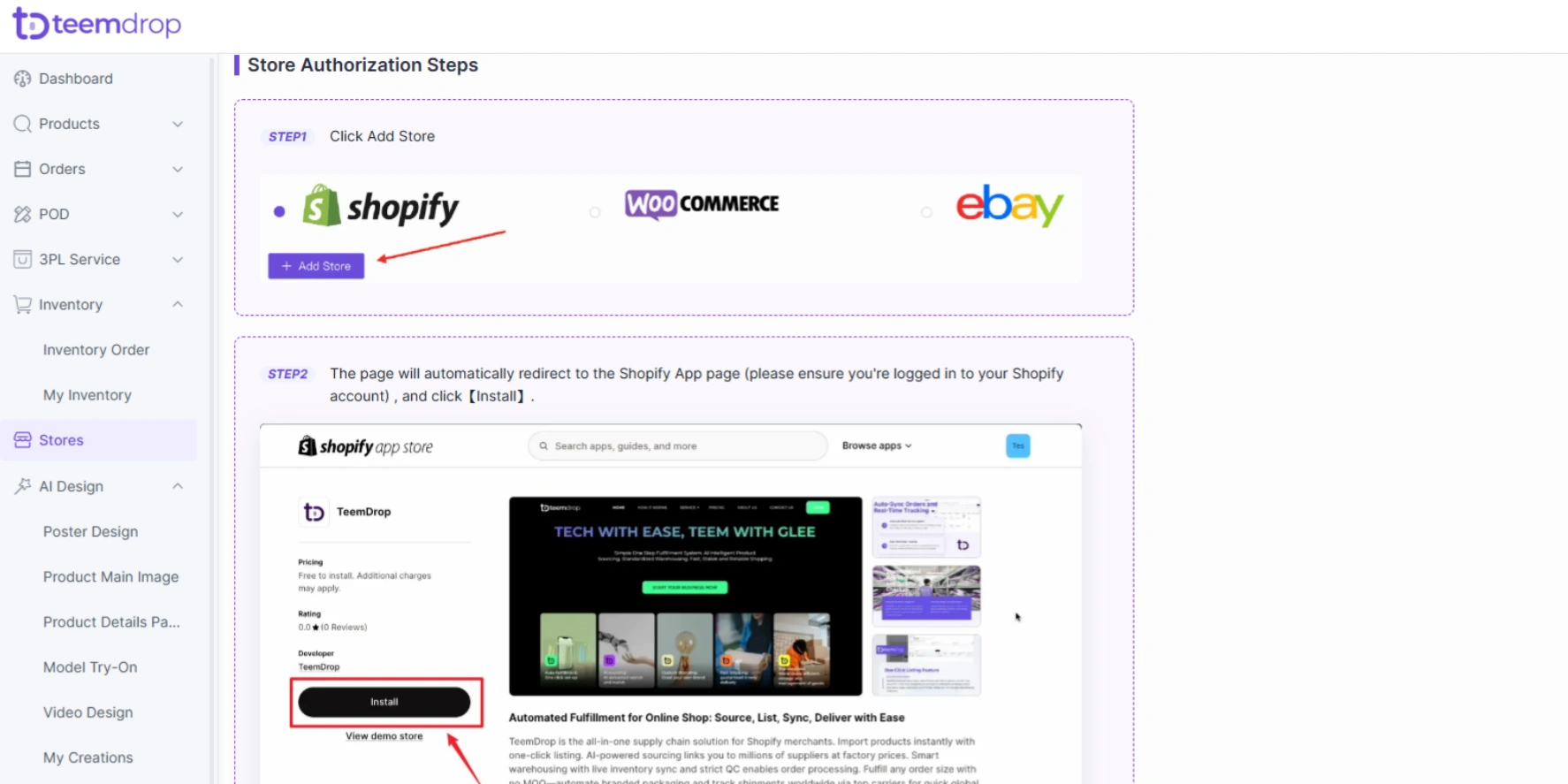
- Log in to your TeemDrop account.
- Go to Stores → Add Store.
- Select Shopify and click Authorize.
- You will be redirected to the Shopify App page. Make sure you are logged in to the correct Shopify account.
- Click Install to install the TeemDrop app.
- Click Install again to confirm.
- Return to TeemDrop and check the authorized store list.
Once the Shopify store appears in the list with a successful authorization status, the connection is complete.
How to Connect WooCommerce to TeemDrop
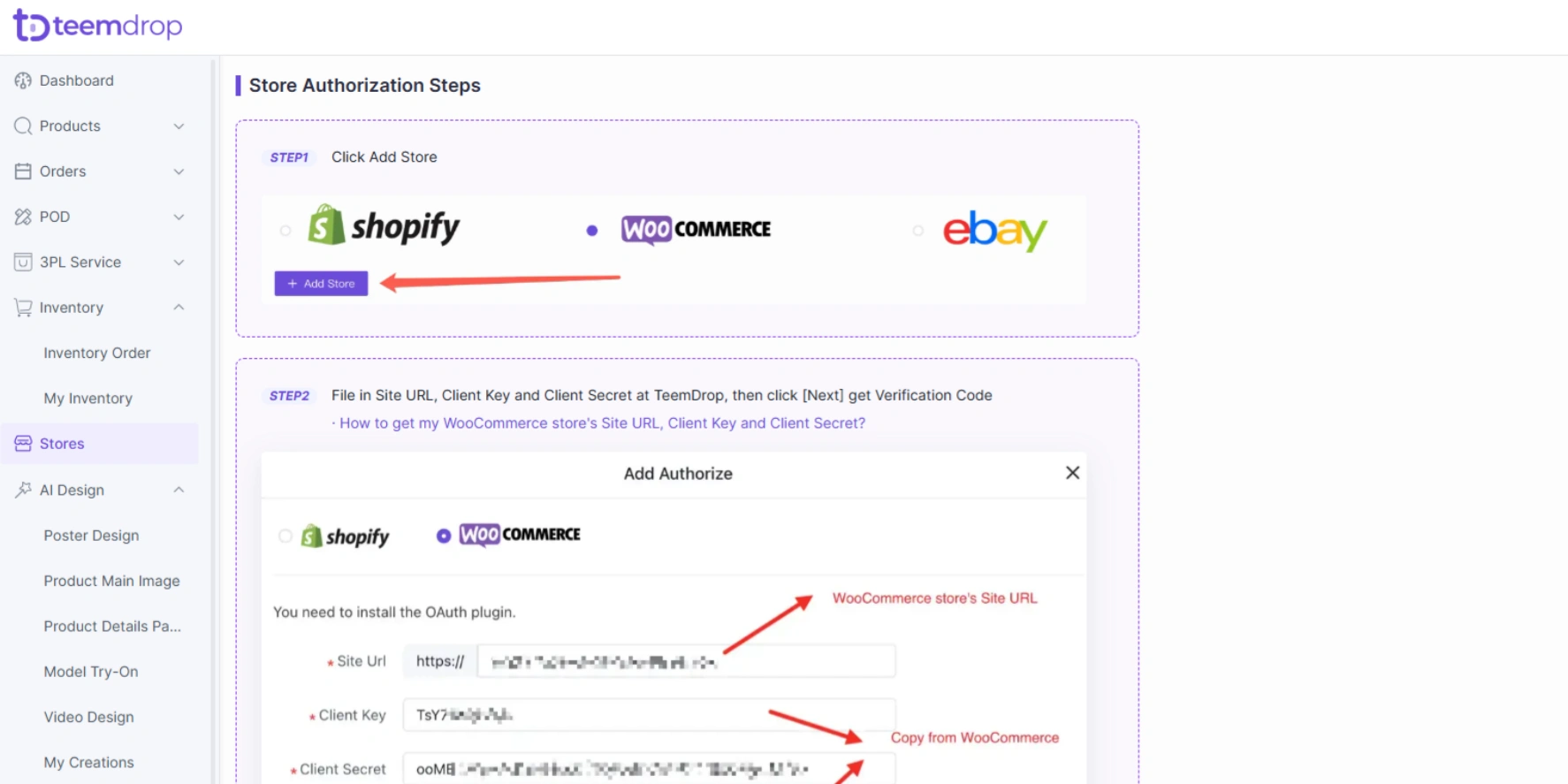
WooCommerce requires a few additional preparation steps because the connection uses API credentials.
Step 1: Find Your WooCommerce Site URL
Log in to your WordPress dashboard and go to WooCommerce → Settings → General. Find the Site Address (URL). You will need it when adding WooCommerce to TeemDrop.
Step 2: Generate WooCommerce API Credentials
- Go to Plugins → Add Plugin in WordPress.
- Search for WP REST API - OAuth 1.0a Server.
- Install and activate the plugin.
- Open Settings → Permalinks, select Post Name, and save the changes.
- Go to Users → Applications and click Add New.
- Create an application for TeemDrop and enter the required application information.
- Click Add Consumer, then copy the generated Client Key and Client Secret.
Step 3: Authorize Your WooCommerce Store
- Log in to TeemDrop and go to Stores → Add Store.
- Select WooCommerce.
- Enter your Site URL, Client Key, and Client Secret.
- Click Next to generate a verification request.
- Return to WooCommerce and click Authorize.
- Complete the authorization process using the verification code.
After authorization, check the TeemDrop store list to confirm that your WooCommerce store is connected.
How to Connect eBay to TeemDrop
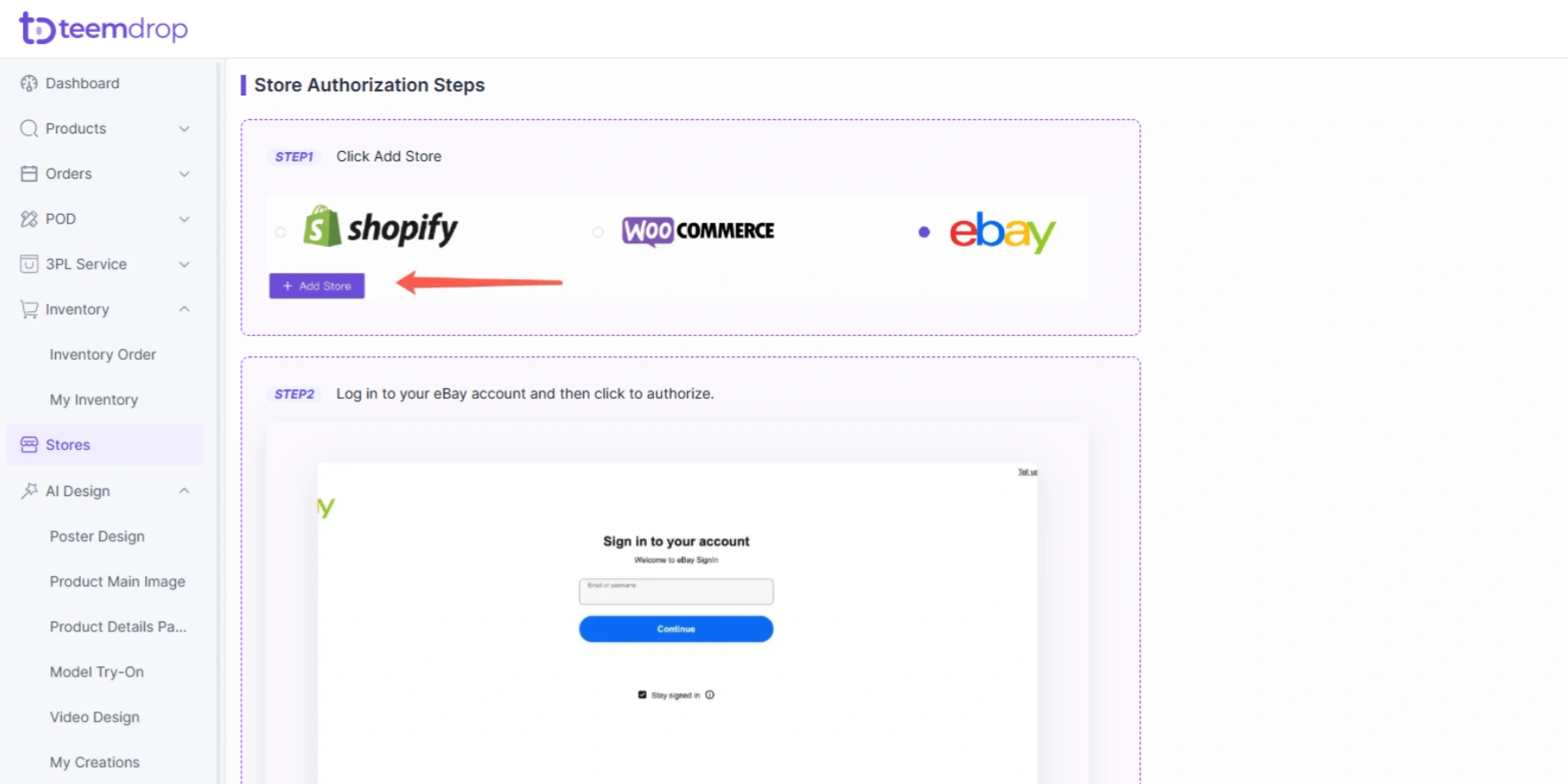
If you operate an eBay dropshipping business, you can authorize your eBay account through TeemDrop's store connection interface.
- Log in to your eBay account.
- Open your TeemDrop account.
- Navigate to Stores → Add Store.
- Select eBay and click Authorize.
- On the eBay authorization page, review the permission request.
- Click Agree and Continue to authorize the connection.
- You will be redirected to TeemDrop after authorization is complete.
Once authorization is successful, your eBay store should appear in the authorized store list.
For sellers managing an eBay business, a connected fulfillment workflow can reduce repetitive order management tasks. The broader ebay dropshipping process also involves choosing suitable suppliers, maintaining accurate listings, and meeting delivery expectations.
How to Connect Wix to TeemDrop
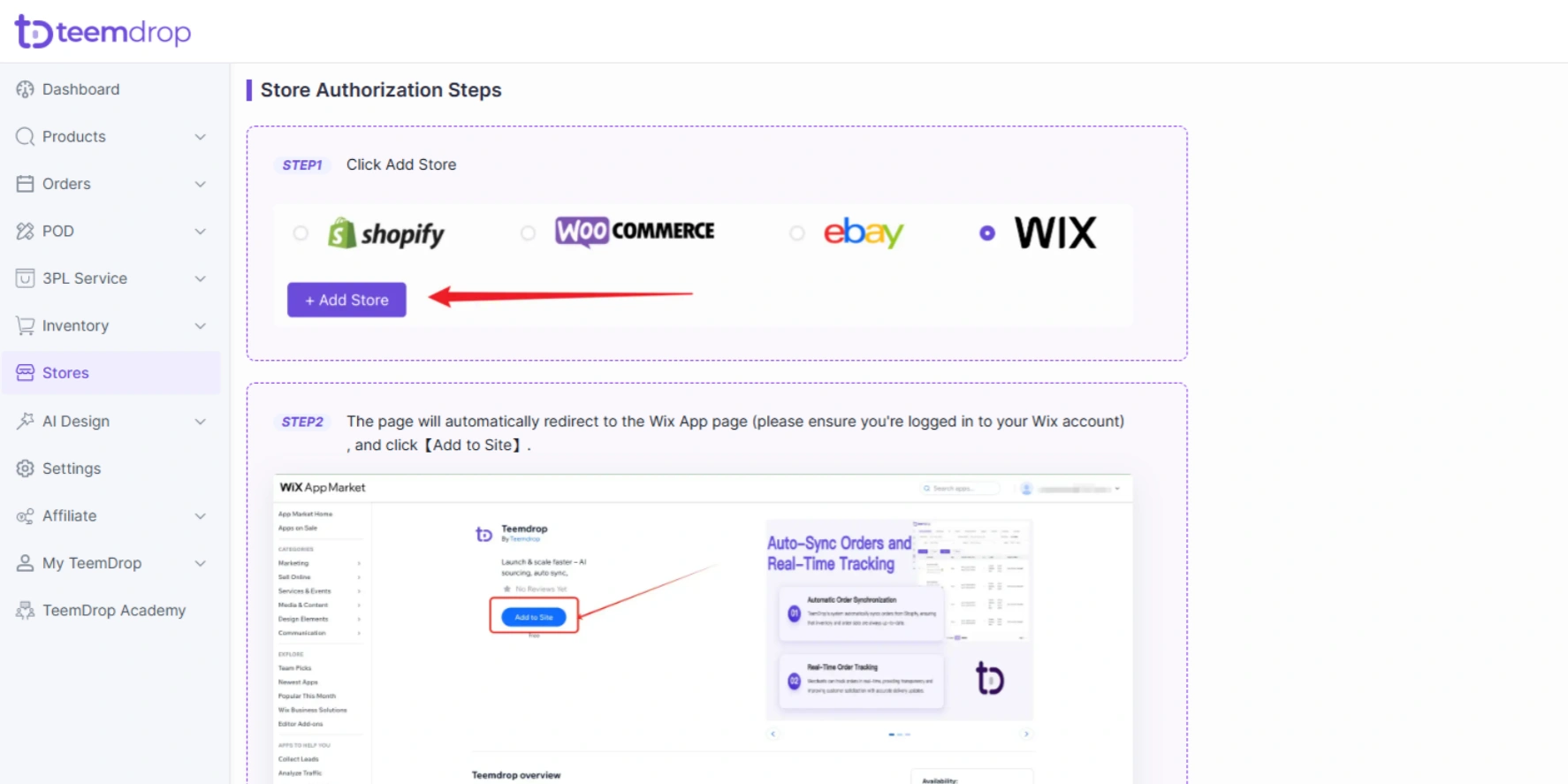
Wix uses an app installation and permission approval process.
- Log in to both your Wix and TeemDrop accounts.
- In TeemDrop, navigate to Stores → Add Store.
- Select Wix and click Authorize.
- You will be redirected to the TeemDrop app page in the Wix App Market.
- Click Add to Site.
- Review the permission window and click Agree & Add.
- Wait for the page to redirect you to the TeemDrop dashboard.
- Check your authorized store list to confirm that the Wix store has a normal status.
After returning to TeemDrop, check the authorized store list. If your Wix store appears with a normal status, the authorization has been completed successfully.
How to Manage Products and Orders After Connecting Your Store to TeemDrop
Authorizing your store is only the first step. Once the connection is complete, you can start managing products and orders through TeemDrop.
The TeemDrop dashboard provides four main workflow areas: Add Store, Source Products, List Products, and Link Products. Each serves a different purpose.
Connect Existing Store Products
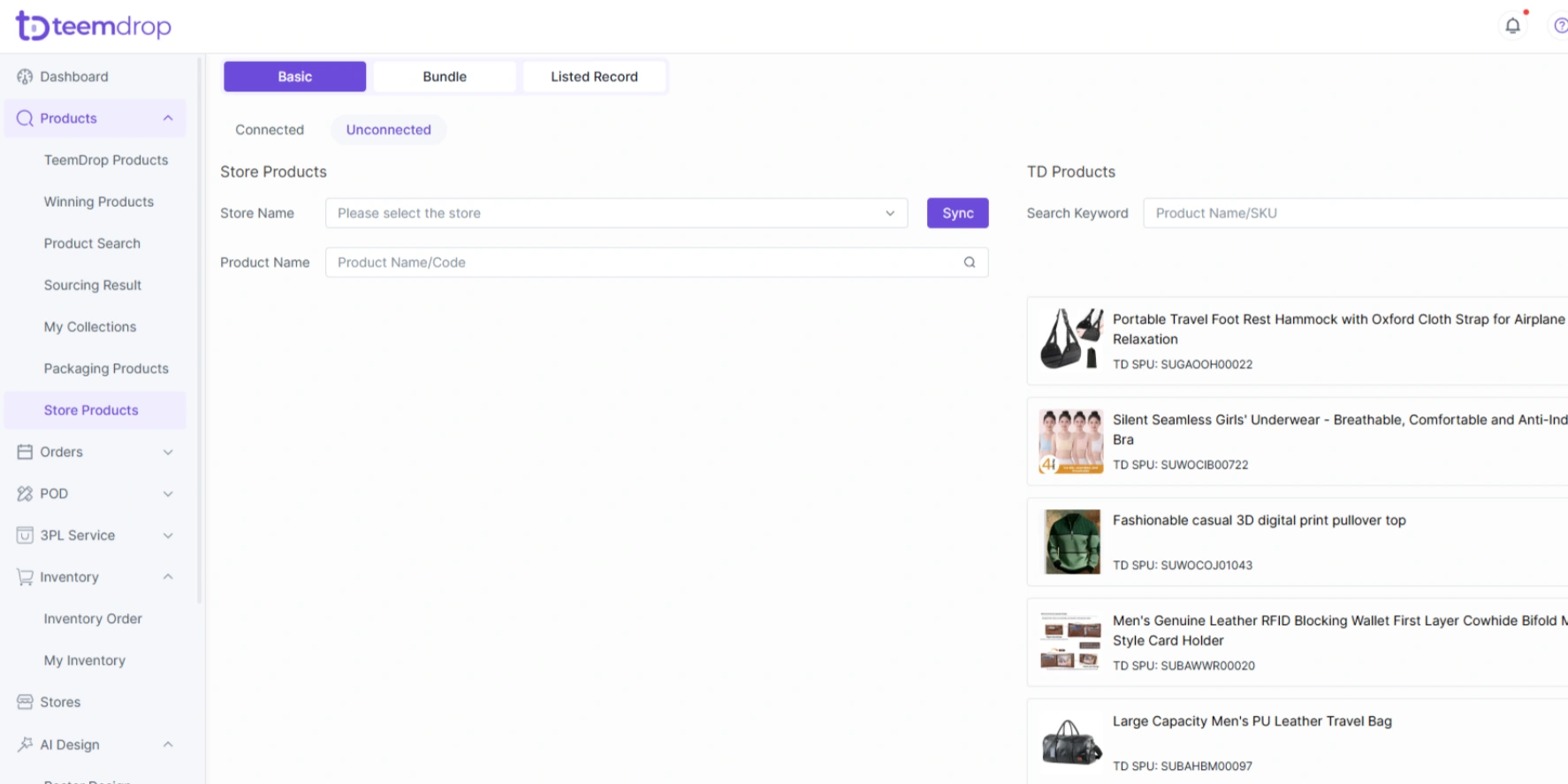
If your store already has product listings, you can match them with corresponding TeemDrop products instead of creating new listings.
- Go to Products → Store Products → Basic → Unconnected List.
- Select a store product from the left panel.
- Choose the corresponding TeemDrop product from the right panel.
- Click Connect.
- Open the Connected List to verify the result.
Match each store product to the correct TeemDrop product and variant. Incorrect SKU connections may cause fulfillment errors, so check product specifications, sizes, and colors before confirming the match.
Accurate product matching helps prevent SKU errors and fulfillment problems. Follow the steps in how to connect store existing products with teemdrop to connect your existing listings with the correct TeemDrop products.
Source Products That Are Not Available in Your Store Catalog
What if you cannot find a matching product in the TeemDrop catalog?
You can submit a sourcing request. Use this when you have already identified a product from another supplier or marketplace but need a fulfillment partner to source it.
To submit a request:
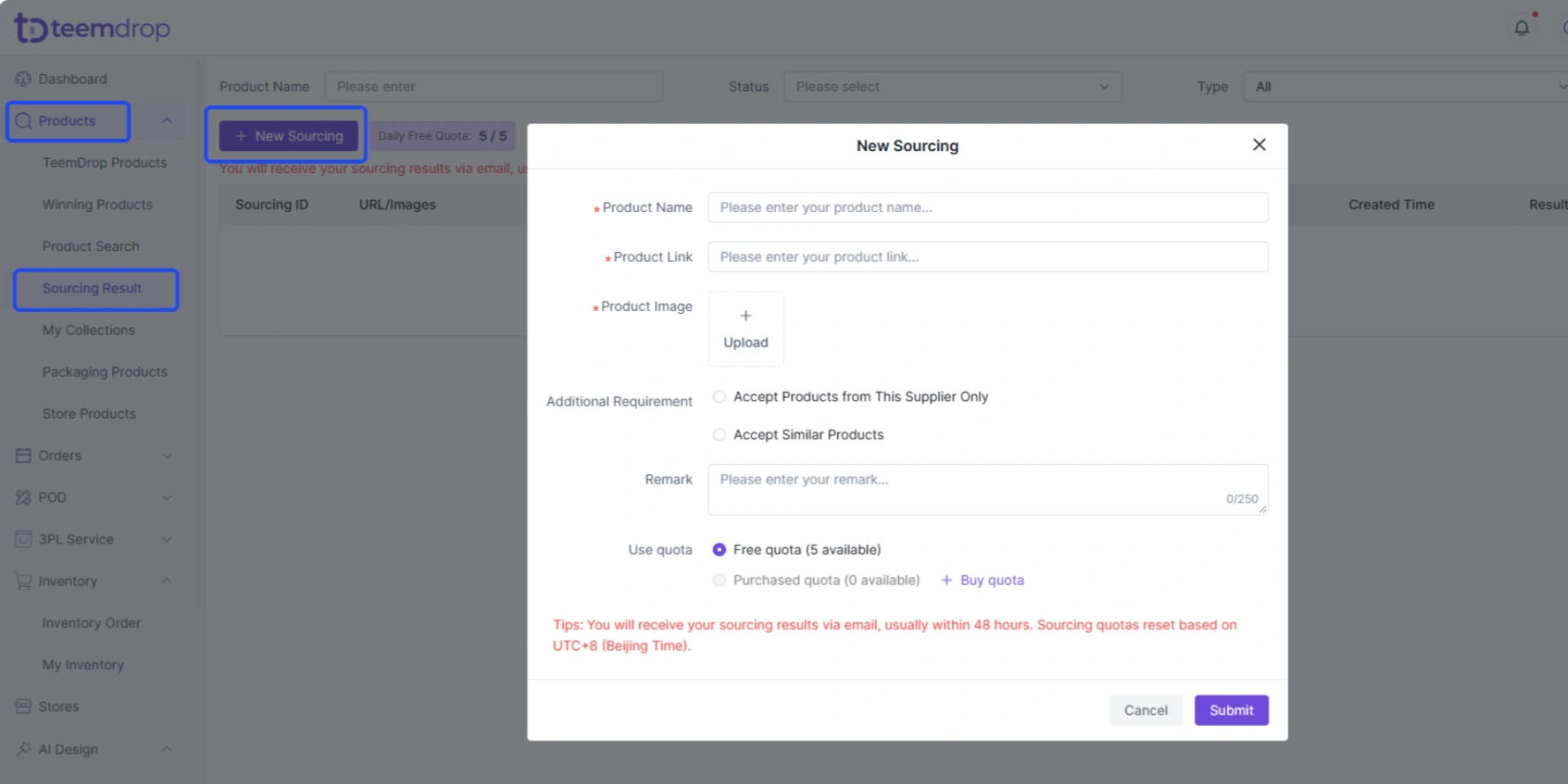
- Go to Products → Sourcing Results.
- Click + New Sourcing.
- Enter the Product Name (required).
- Add a Product Link, if available.
- Upload a product image to help identify the item.
- Add any special requirements.
- Click Submit.
Providing a valid product link and clear product images can help the sourcing team identify the item more accurately.
According to TeemDrop's FAQ, sourcing results are generally available within 48 hours. You can check the request status in the sourcing results section of your account.
TeemDrop's ai dropshipping sourcing workflow can also help sellers identify products and request sourcing support without relying only on items already listed in the catalog.
List Products to Your Online Store
If you want to add a new product instead of connecting an existing listing, use the List Products function.
The process is straightforward:
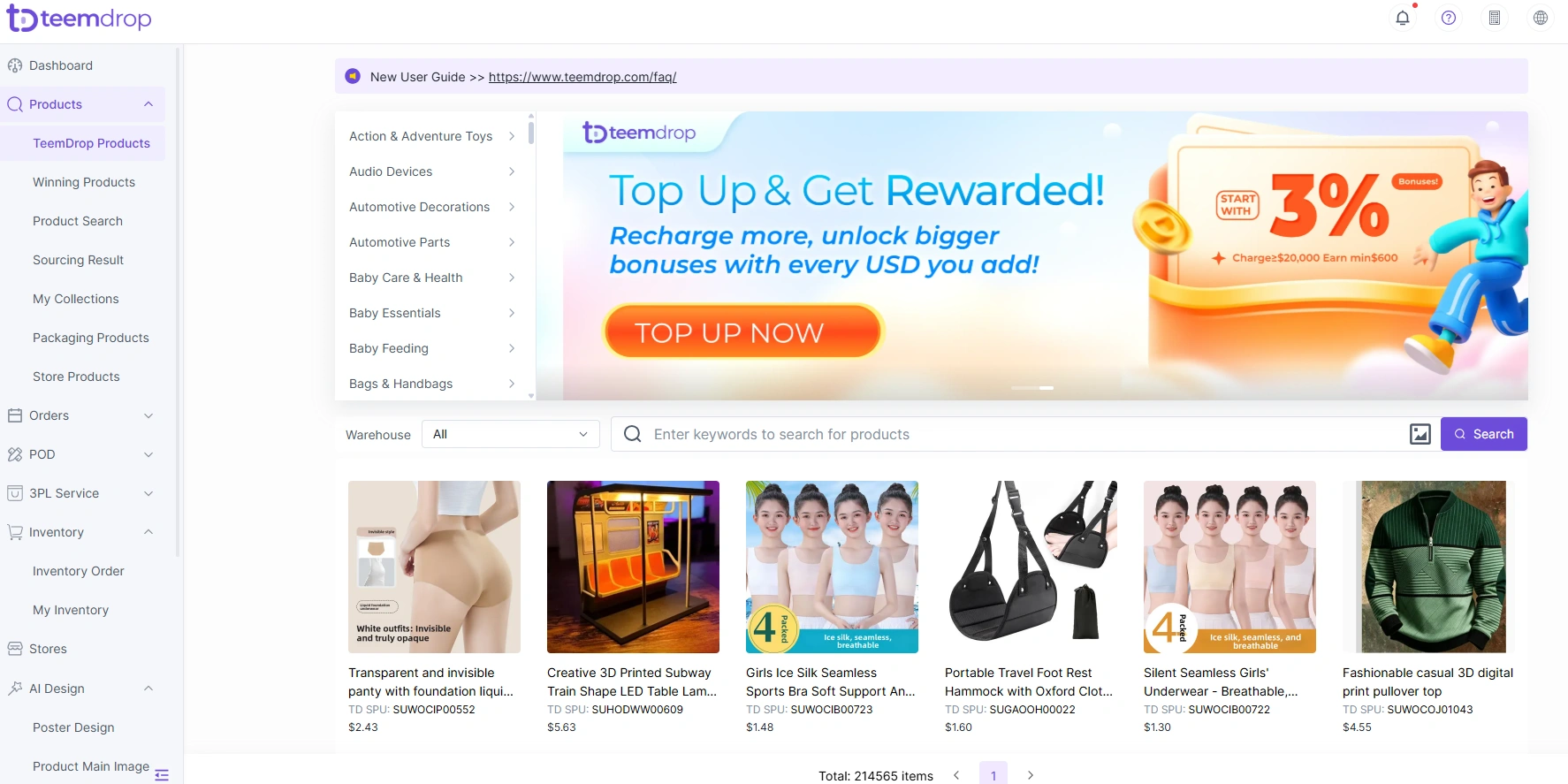
- Go to Products→ TeemDrop Products.
- Browse or search for the product you want to sell.
- Open the product page and click List to Store.
- Select your authorized store.
- Complete the required product information and selling price.
- Review product descriptions, images, and variants.
- Click List Now to publish the product.
Before publishing, check the product details and selling price carefully. Make sure the listing matches your store's product strategy and target customers.
Sync Store Orders to TeemDrop
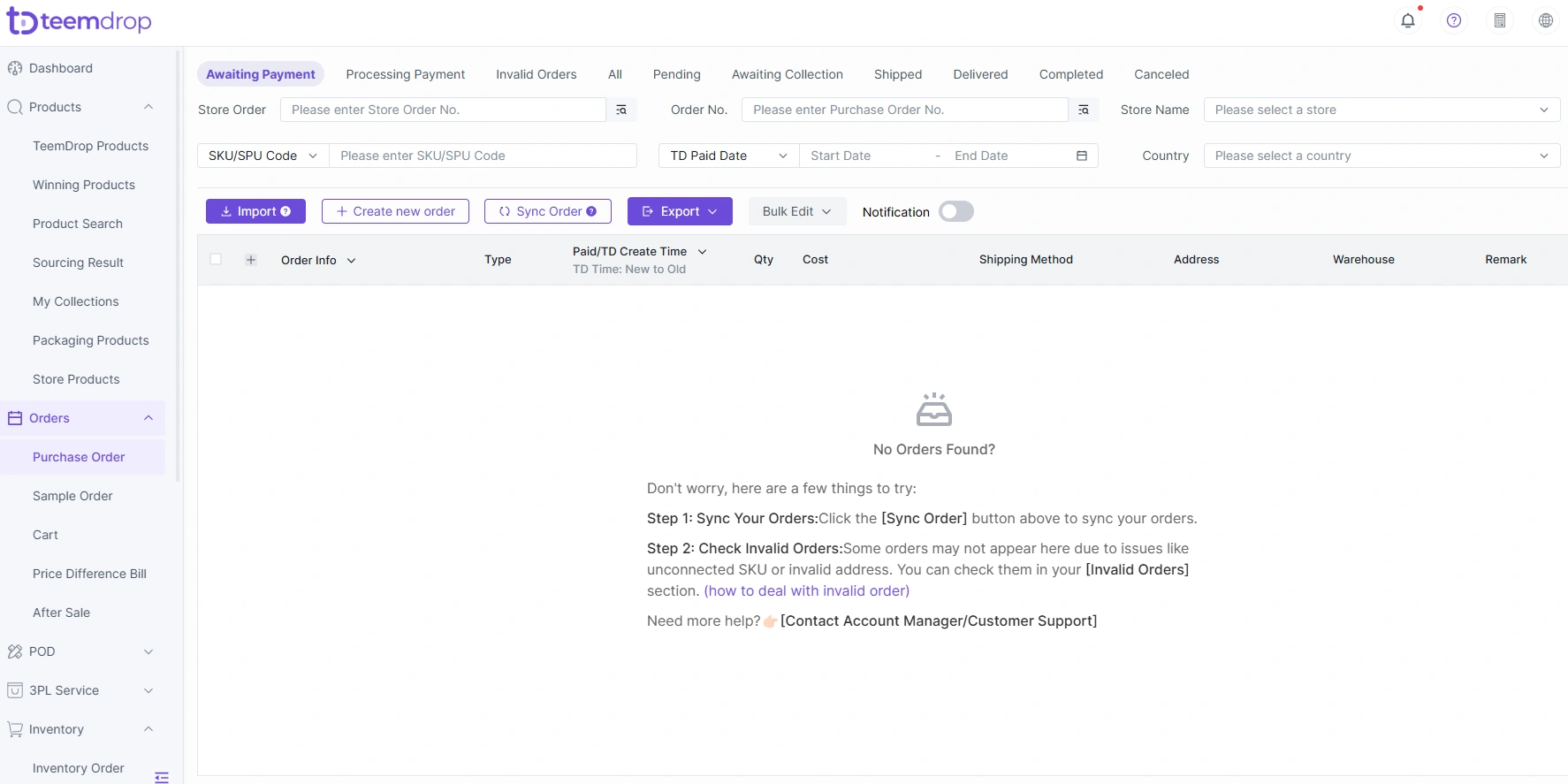
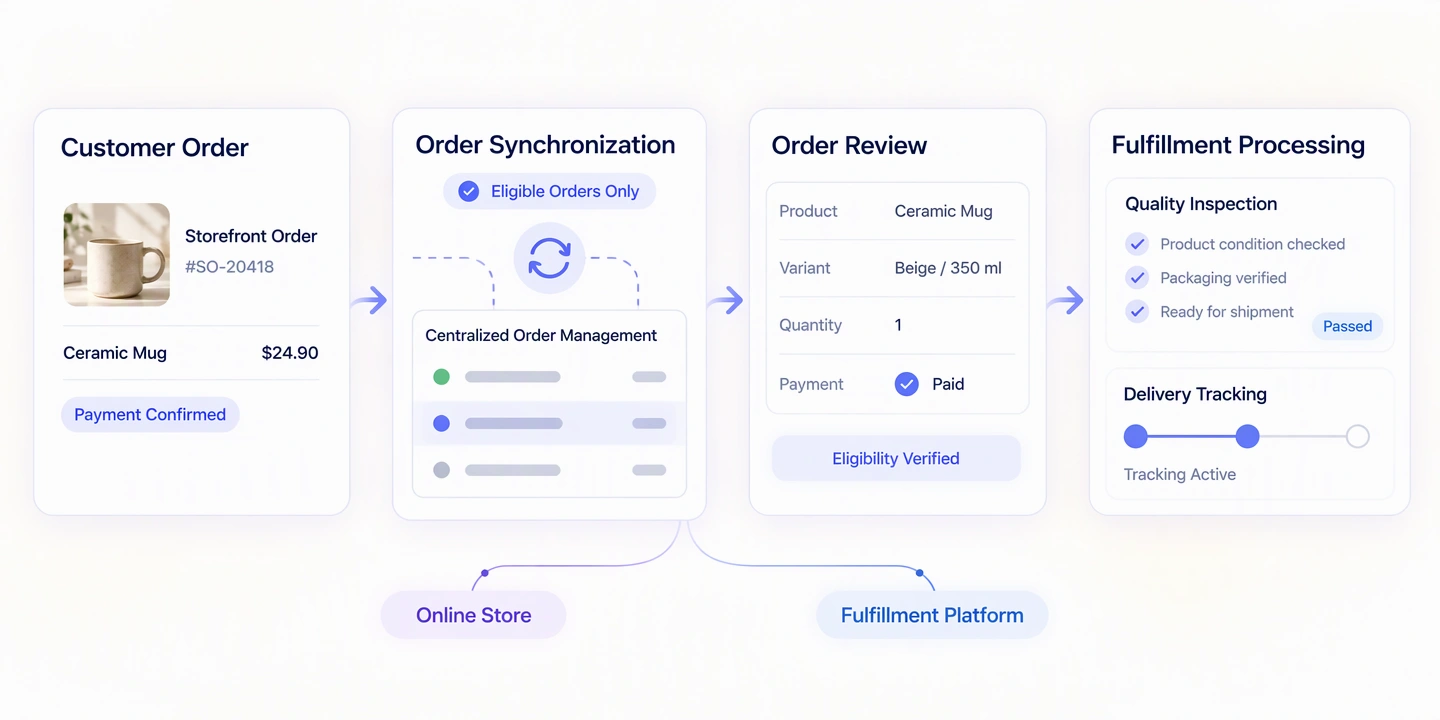
After your store is authorized and the relevant products are connected, eligible customer orders can sync to TeemDrop automatically or manually.
- Automatic Sync: New eligible orders from authorized stores are synchronized automatically.
- Manual Sync: Go to Orders → Purchase Orders → Awaiting Paymentand click Sync.
After synchronization, check the order details and confirm that the correct products and variants are assigned. Orders that require attention may appear under Invalid Orders.
TeemDrop can only process orders with an Unfulfilled status. Orders that have already been fulfilled in your store are not eligible for normal processing through this workflow. Once an order is synced successfully, review its details and complete the required payment to proceed with fulfillment.
The process for how to sync your store orders to teemdrop covers both automatic and manual synchronization.
Best Practices for Managing Multiple Dropshipping Stores
If you operate multiple online stores, keep product information and order records organized to reduce fulfillment errors.
Keep Product SKUs Consistent
Use clear SKU information across your catalog. Check product variants, sizes, colors, and specifications before connecting existing listings.
Review Product Connections Regularly
Check the Connected List to make sure each store product is still linked to the correct TeemDrop product. If an item is unavailable or no longer matches, submit a new sourcing request.
Monitor Order Synchronization
Review the Awaiting Payment and Invalid Orders sections regularly. If an order is missing, check store authorization, product connections, and fulfillment status.
Check Product Quality and Shipping
Product consistency, packaging, and delivery performance all affect customer satisfaction. TeemDrop provides pre-shipment inspections and visual inspection records as part of its dropshipping and quality control services.
Common Store Connection and Order Syncing Problems
Even after authorization, you may occasionally encounter connection or synchronization problems. The following table covers common situations and what to check first.
| Common Issue |
What to Check |
| Store authorization failed |
Check your account permissions and repeat the authorization process. |
| WooCommerce connection failed |
Verify the Site URL, Client Key, Client Secret, and required plugin status. |
| Products are not connected |
Open the Unconnected List and match the correct TeemDrop SKU. |
| No matching product found |
Submit a sourcing request with a valid product link or image. |
| Orders are not syncing |
Check store authorization and review Invalid Orders. |
| Orders cannot proceed to fulfillment |
Confirm that the order is Unfulfilled and review its product and payment information. |
If the issue continues, contact TeemDrop support or your account manager with the affected store and order details. Providing screenshots and error information can make troubleshooting easier.
Connect Your Store and Simplify Dropshipping Fulfillment with TeemDrop
Connecting your online store to a fulfillment platform can make daily dropshipping operations easier to manage. Instead of handling product sourcing, product connections, and order processing separately, you can bring these workflows together through one platform.
With support for Shopify, WooCommerce, eBay, and Wix store authorization, TeemDrop helps sellers connect their existing stores and manage key fulfillment tasks from a centralized dashboard.
Once your store is connected, you can source products, list items, manage product connections, and synchronize eligible orders for fulfillment.
FAQs
1. Is It Free to Connect My Store to TeemDrop?
There is no separate store connection fee. However, product costs, shipping, and optional services may incur charges when you place orders or use those services.
2. Which E-commerce Platforms Can I Connect to TeemDrop?
TeemDrop supports store authorization for Shopify, WooCommerce, eBay, and Wix. You can check the available connection options in your account.
3. Do I Need to Remove My Existing Products Before Connecting TeemDrop?
No. You can keep your current listings and connect them with matching TeemDrop products through Products → Store Products.
4. Does TeemDrop Automatically Sync Store Orders?
Yes. New eligible orders from authorized stores can sync automatically. Orders may not appear if they are invalid, contain unconnected products, or fail to meet processing requirements. Check the Invalid Orders section if synchronization issues occur.
5. How Can I Fix a Failed Store Authorization?
Check that you are logged in to the correct store account and have the required permissions. For WooCommerce, verify your API credentials and plugin status. If the problem continues, contact TeemDrop support with the error details.