Why Does My Shopify Store Show Sold Out? 7 Common Causes
You add a product to your Shopify store, check the supplier, and see that it is still available. But your storefront says Sold Out.
This is a common problem for Shopify sellers, especially dropshippers. In many cases, the product itself is not actually unavailable. The issue may be related to Shopify inventory settings, product variants, inventory locations, or a failed connection between your store and supplier.
For dropshipping stores, keeping product and supplier information aligned is especially important. TeemDrop helps sellers connect product sourcing, inventory management, and automated fulfillment in one workflow, reducing the amount of manual work involved in keeping a store running.
This guide explains why Shopify products can show as sold out, how to fix the problem, and how to reduce the chance of it happening again.
Quick Answer: Why Is My Shopify Product Showing Sold Out?
Your Shopify product may show Sold Out because its inventory is set to zero, a variant is unavailable, the wrong location is assigned, or supplier inventory has not synced correctly.
In short: Shopify cannot recognize available inventory for the product or variant.
Key Takeaways
- A Shopify "Sold Out" message does not always mean your supplier has no stock.
- Check Shopify inventory quantity, locations, and variants before replacing the product.
- Supplier inventory and Shopify inventory need to stay synchronized.
- Manually checking stock becomes difficult as your store grows.
- Automated inventory syncing can help reduce accidental stockouts.
- If the problem keeps happening, review your dropshipping app and product mapping.

Why Is Shopify Showing Your Product as Sold Out?
Before changing anything, it helps to understand how Shopify handles inventory.
Shopify tracks inventory at the product variant and location level. A product can have stock in one location but still appear unavailable online if that location is not configured to fulfill online orders. [1]
This means a product may look available from your supplier's side while your Shopify storefront sees no sellable inventory.
For a dropshipping store, there is another layer to consider:
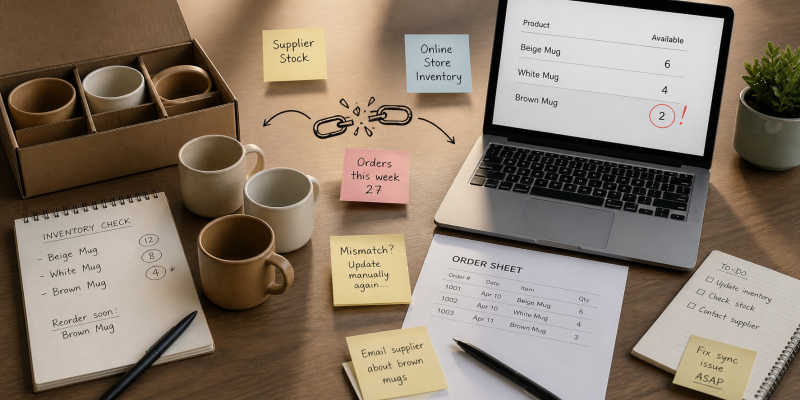
Supplier stock → Dropshipping platform → Shopify inventory → Customer
If information does not move correctly through this chain, your store can show shopify out of stock even when the supplier still has units available.
7 Reasons Your Shopify Product Shows Sold Out
1. Your Shopify Inventory Quantity Is Zero
The simplest explanation is that Shopify has recorded the available inventory as zero.
Go to:
Shopify Admin → Products → Select Product → Inventory
Check the available quantity for the affected product or variant.
If Shopify is tracking inventory and the quantity is zero or below, the product can automatically appear as sold out. [2]
This is one of the first things to check when your Shopify product showing sold out issue appears.
What to do
Confirm that:
- The correct quantity is entered.
- Inventory tracking is enabled correctly.
- The product is active on your sales channel.
- The correct variant is being checked.
2. Inventory Tracking Is Configured Incorrectly
Shopify gives you control over whether inventory is tracked.
If tracking is enabled but the quantity is not correctly maintained, your storefront may show a product as unavailable.
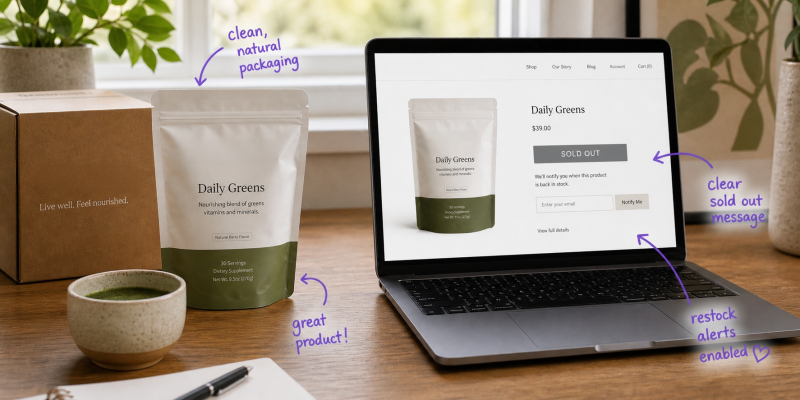
Shopify also provides a Continue selling when out of stock option. However, this should not be treated as a general solution for dropshipping stores because selling products without confirmed supplier stock can lead to delayed fulfillment and customer complaints. [2]
Instead, first determine why your inventory is incorrect.
Best practice
For dropshipping, the goal should be accurate inventory synchronization, not simply allowing customers to purchase products that Shopify believes are unavailable.
3. The Product Is Assigned to the Wrong Inventory Location
This is an easy issue to miss.
Shopify allows stores to use multiple inventory locations, including warehouses and fulfillment apps. If inventory exists at one location but that location is not configured to fulfill online orders, the product can still appear unavailable to customers. [3]
For example:
Supplier location: 50 units
Online fulfillment location: 0 units
Shopify storefront: Sold Out
The inventory exists, but Shopify does not consider those units available for the relevant online order.
How to fix it
Open the product's inventory settings and check:
- Which locations stock the product
- Which location fulfills online orders
- Whether the product has available inventory at that location
This is particularly important if you use a third-party fulfillment or dropshipping app.
4. One Product Variant Is Out of Stock
Sometimes the overall product is available, but a specific variant is not.
For example:
- Black / Small — 20 available
- Black / Medium — 0 available
- Black / Large — 15 available
Depending on your product settings and theme, customers may see a sold-out option when selecting the unavailable variant.
This is why you should check individual SKUs rather than just the total product inventory.
Shopify manages inventory at the variant level so that each variant can have its own inventory quantity.
What to check
Review everything:
- Size
- Color
- Model
- SKU
- Product option
If only one option is unavailable, you may not need to remove the entire product.
5. Your Supplier Inventory Has Changed
This is one of the most common problems in dropshipping.
A product can be available when you import it but become unavailable later.
For example:
Monday: Supplier has 100 units
Wednesday: Supplier has 12 units
Friday: Supplier has 0 units
If your Shopify inventory is not updated, your storefront may show the wrong stock status.
The opposite can also happen: your supplier still has inventory, but Shopify shows zero because the latest inventory update did not reach your store.
For dropshippers, this makes supplier monitoring an important part of dropshipping inventory management.
6. Your Shopify Inventory Sync Has Stopped
If your Shopify store depends on a dropshipping platform or inventory app, a synchronization problem can cause outdated stock information.
Possible causes include:
- Connection problems
- Incorrect product mapping
- SKU mismatches
- App location problems
- Delayed inventory updates
- Product changes at the supplier
Shopify notes that inventory apps can have their own inventory locations, which means the relationship between the app and your Shopify locations needs to be configured correctly.
What to do
If your supplier has stock but Shopify does not, check the synchronization status and review how to sync your store orders to TeemDrop before manually changing inventory.
Otherwise, you may temporarily fix the storefront while creating another inventory mismatch.
7. The Product Was Imported With Incorrect Data
A product import can also create an inventory problem.
For example, the product may be imported with:
- Quantity set to zero
- Incorrect SKU
- Missing variant information
- Wrong inventory location
- Incorrect product mapping
This is especially relevant when sellers move products between different ecommerce tools.
If you are importing products into your store, how to list product to store provides a relevant starting point. After importing a product, always verify its variants, SKU, inventory, and location rather than assuming the imported data is correct.
How to Fix a Shopify Product Showing Sold Out
Use this quick troubleshooting process before deleting the product.
Step 1: Check Shopify Inventory
Open the product and confirm the available quantity.
Step 2: Check Inventory Locations
Make sure the product is assigned to the location that can fulfill online orders.
Step 3: Check Product Variants and SKUs
Look at individual sizes, colors, and SKUs.
Step 4: Check Supplier Stock
Confirm that the supplier still has the exact product and variant you are selling.
Step 5: Check Inventory Synchronization
If the supplier has stock but Shopify does not, check your dropshipping app or fulfillment connection.
Step 6: Review Product Mapping
Make sure the Shopify SKU matches the product or variant used by your supplier.
Step 7: Test the Shopify Storefront
After making changes, open your storefront as a customer and confirm that the correct availability status appears.
How to Prevent Shopify Products From Showing Sold Out
Fixing one product is useful, but preventing repeated inventory problems is better.
Use Automated Inventory Synchronization
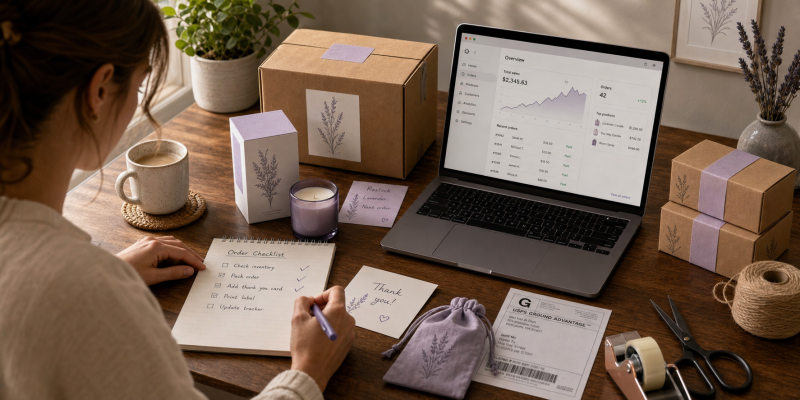
Manual inventory checks may work for a small store, but they become difficult when you have dozens or hundreds of products.
Automated stock syncing can update your storefront when supplier inventory changes. This helps reduce the risk of selling products that are no longer available.
For dropshippers, this is particularly important because you do not physically control the supplier's inventory.
Monitor Product Variants
Do not only monitor the overall product.
A product can remain active while individual variants become unavailable. Regularly checking your best-selling SKUs can help you identify problems before customers do.
Review Supplier Availability
A reliable supplier is just as important as the product itself.
If a product repeatedly becomes unavailable, consider finding an alternative supplier rather than constantly adjusting Shopify inventory manually.
Use Smart Inventory and Fulfillment Workflows
As your store grows, inventory management becomes closely connected to sourcing and fulfillment. When supplier stock, Shopify inventory, and order processing are handled separately, it becomes easier for stock information to become outdated.
A connected workflow can reduce these gaps by keeping product sourcing, inventory updates, and fulfillment closer together. This is especially useful for dropshipping stores, where sellers do not physically hold the products they sell.
How TeemDrop Helps Reduce Shopify Inventory Issues
If you run a Shopify dropshipping store, inventory accuracy becomes harder as your product catalog grows.
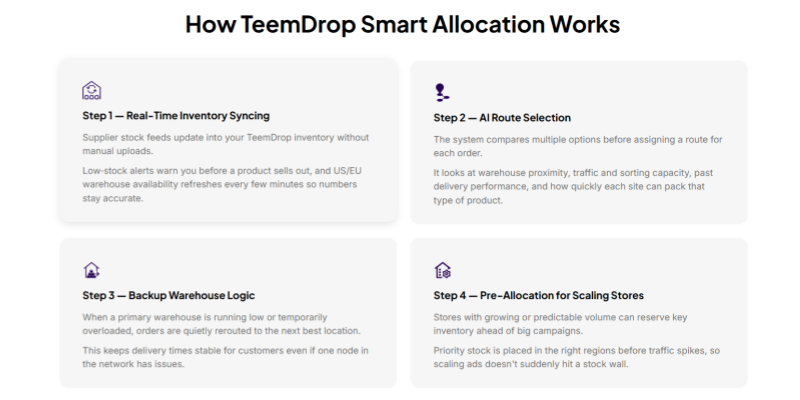
TeemDrop provides an integrated workflow from AI-powered product sourcing to store integration and automated fulfillment. Its product sourcing system supports one-click product import to Shopify, while its fulfillment system is designed to synchronize store orders and manage fulfillment automatically.
This can help reduce several common manual tasks:
- Finding and sourcing replacement products
- Checking supplier availability
- Managing product information
- Keeping order information synchronized
- Processing orders automatically
- Coordinating fulfillment
The goal is not to make every inventory problem disappear. Instead, automation reduces the number of manual steps where inventory errors can occur.
For a growing dropshipping business, working with a branded dropshipping supplier can make managing Shopify showing sold out issues much easier.
FAQ
Why does my Shopify store say sold out when I have inventory?
This usually happens because Shopify does not recognize the available inventory as sellable. Check inventory quantity, product variants, fulfillment locations, and inventory synchronization.
Why is Shopify stock down even though my supplier has products?
Your Shopify inventory may not have received the supplier's latest stock update. Check the connection between your supplier, dropshipping platform, and Shopify store.
How do I fix a product showing sold out on Shopify?
Start by checking the product's inventory quantity and variants. Then verify the inventory location, supplier availability, and synchronization settings.
Why does Shopify show some variants as sold out?
Each variant can have its own inventory level. One size, color, or SKU may have reached zero even when other variants remain available.
Should I enable "Continue selling when out of stock"?
You can, but it is not always appropriate for dropshipping. If your supplier cannot reliably fulfill the product, continuing to sell it may create fulfillment delays and customer complaints. Shopify provides this option specifically for situations where merchants intentionally want to accept orders despite zero inventory.
Final Thoughts
When your Shopify product shows sold out unexpectedly, do not assume the product is actually unavailable.
Start with Shopify's inventory quantity, locations, and variants. Then check whether your supplier and dropshipping platform are sending accurate inventory information to your store.
For a growing Shopify dropshipping business, the long-term solution is not simply changing stock numbers manually. A more reliable workflow connects product sourcing, supplier inventory, store synchronization, and fulfillment.
With TeemDrop, sellers can bring these processes together through AI-powered sourcing, automated order workflows, smart inventory allocation, and global fulfillment. That gives you more control over the operational side of your store while you focus on products, customers, and growth.
References
[1] Shopify Help Center — Selling out of stock products
Shopify: Selling out of stock products
[2] Shopify Help Center — Setting up your product inventory
Shopify: Setting up your product inventory
[3] Shopify Help Center — Understanding inventory management for multiple locations and apps
Shopify: Inventory management for multiple locations and apps